Why Windows Blocks Drivers Under Memory Integrity
When Windows displays a Program Compatibility Assistant banner stating that a driver cannot load or that a security setting is preventing it from loading, a security feature has blocked that driver from running in system memory. In Windows 11 and Windows 10, Memory Integrity—also known as Hypervisor-protected Code Integrity (HVCI)—works within Virtualization-based Security (VBS) to enforce these protections.
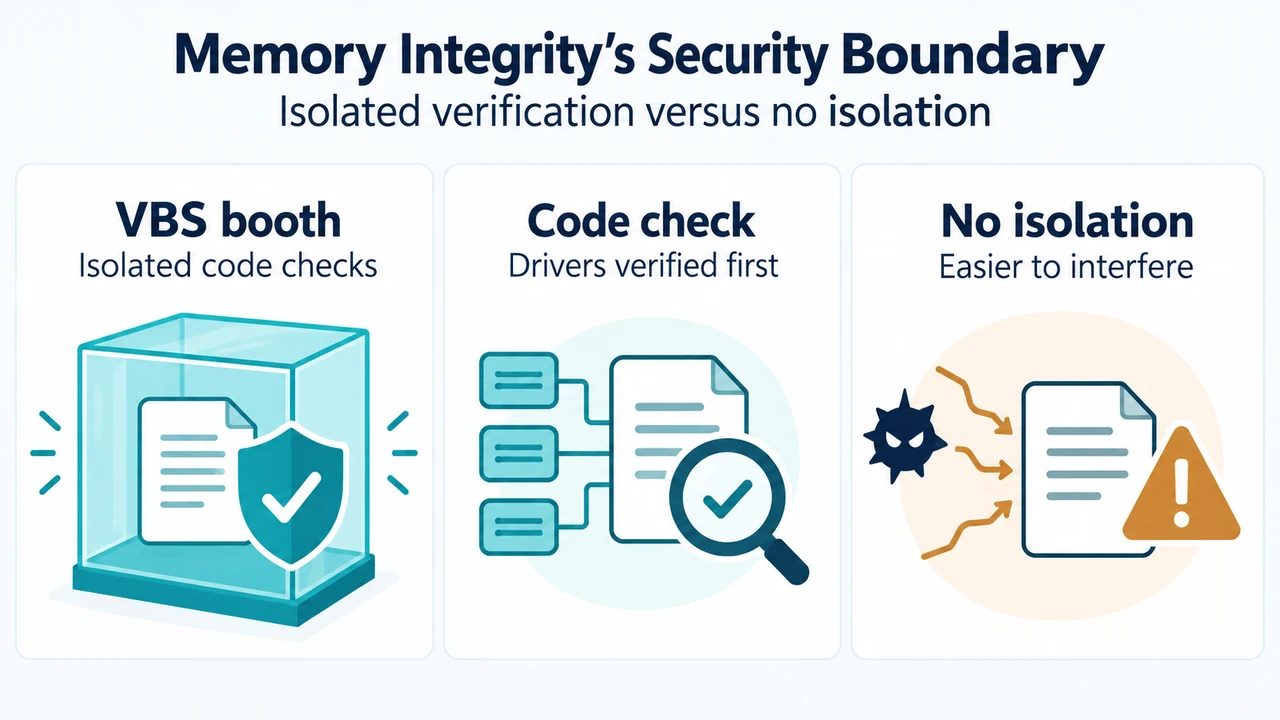
A driver is software that allows the Windows operating system and hardware devices, such as keyboards or webcams, to communicate. Because drivers handle requests between devices and the operating system, they hold sensitive access across the system. Under Virtualization-based Security, Windows creates an isolated virtual environment using hardware virtualization and the Windows hypervisor. Memory Integrity runs kernel-mode code integrity checks within this isolated environment before drivers or system binaries load into memory, blocking unsigned or untrusted code.
In addition, Windows 11 maintains the Microsoft vulnerable driver blocklist, which automatically turns on when Memory Integrity, Smart App Control, or Windows S mode is active. This list blocks drivers with known vulnerabilities, drivers signed with certificates associated with malware, or drivers that circumvent the Windows Security Model.
Supported Steps to Address Blocked Driver Warnings
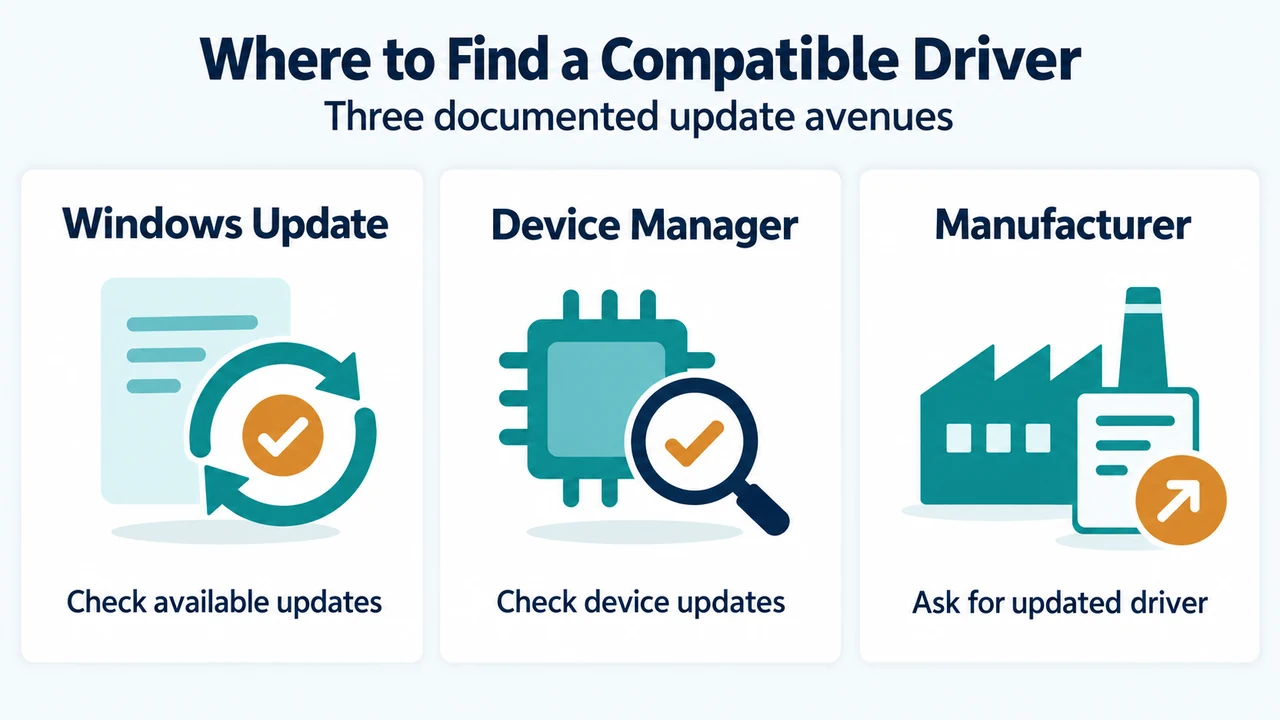
When a Program Compatibility Assistant notification appears stating that a driver cannot load, Microsoft documentation specifies the following steps to seek compatible software:
- Check Windows Update: Search for updated drivers through standard Windows Update.
- Check Device Manager: Check for updated drivers through Device Manager.
- Contact the Hardware Manufacturer: If no updates are available through Windows Update or Device Manager, contact the device manufacturer for an updated driver.
Memory Integrity Controls and Trade-Offs
In the Windows Security app, selecting Device security > Core isolation details provides an On/Off toggle for Memory Integrity. To use Memory Integrity, hardware virtualization must be enabled in UEFI or BIOS settings.
Memory Integrity protects the system by acting like a security guard inside an isolated virtual booth, preventing attackers from tampering with the verification process. When a program seeks to run code that could be dangerous, it passes that code into the isolated environment for verification before Windows executes it. When Memory Integrity is turned off, this verification process runs directly in the operating system environment without virtualization isolation, making it easier for malicious code to interfere with protections. While turning Memory Integrity off changes this enforcement, official guidance directs users to resolve driver compatibility warnings by obtaining updated drivers from Windows Update, Device Manager, or the manufacturer.
Research Method and Limitations
This response was prepared solely from the provided public Microsoft documentation excerpts covering Device Security in the Windows Security app and OEM Virtualization-based Security design specifications. No hands-on hardware testing, live driver debugging, or third-party search comparison was conducted. Material limits include truncated passages in the supplied Device Security documentation, meaning unseen text was not used or assumed. The provided excerpts do not detail how to identify a specific file name from the Program Compatibility Assistant banner, nor do they detail individual Device Manager property sheets or uninstallation workflows.
Text version of the diagrams
- Memory Integrity’s Security Boundary: VBS booth — Isolated code checks; Code check — Drivers verified first; No isolation — Easier to interfere
- Where to Find a Compatible Driver: Windows Update — Check available updates; Device Manager — Check device updates; Manufacturer — Ask for updated driver