When investigating disk space consumption, Volume Shadow Copies may occupy storage on designated volumes. On Windows 11 and Windows 10 (as well as supported Windows Server editions and Azure Local), administrators can inspect shadow storage allocation and remove client-accessible snapshots using the vssadmin command-line utility.
This guide explains how to check shadow copy storage consumption with vssadmin list shadowstorage and permanently delete client-accessible snapshots with vssadmin delete shadows based on official Microsoft technical documentation.
Scope
According to Microsoft documentation for vssadmin list shadowstorage and vssadmin delete shadows, these utilities apply to:
- Windows 11 and Windows 10
- Windows Server 2025, Windows Server 2022, Windows Server 2019, and Windows Server 2016
- Azure Local 2311.2 and later
Inspect Shadow Storage Allocation: vssadmin list shadowstorage
A shadow copy storage association links a volume that has shadow copies to the volume that stores those copies, and reports the disk space that storage uses. Run this command to find out where shadow copy storage resides and how much space it consumes, such as before changing its size.
The command supports two parameters:
/for=<ForVolumeSpec>: Lists the shadow copy storage associations for the specified volume. Do not use this parameter together with/on./on=<OnVolumeSpec>: Lists the shadow copy storage associations on the specified volume. Do not use this parameter together with/for.
To list all shadow copy storage associations located on volume C, run:
vssadmin list shadowstorage /on=C:Permanently Remove Client-Accessible Shadow Copies: vssadmin delete shadows
The vssadmin delete shadows command deletes a specified volume’s shadow copies. Deletion is irreversible and restricted to specific snapshot types.
Permanent Loss Warning
Deleting a shadow copy is permanent. You cannot recover a deleted shadow copy, and you lose any previous versions or restore points that depend on it. Target only the volume or shadow copy you intend to remove, and confirm the shadow copy IDs with vssadmin list shadows before deleting anything.
Client-Accessible Scope and Error Context
This command deletes only shadow copies that have the client-accessible type. If you encounter the following error:
“Error: Snapshots were found, but they were outside of your allowed context”
The shadow copies are not client-accessible and cannot be deleted with vssadmin. Official documentation specifies using the diskshadow command instead to manage and delete those shadow copies.
Command Syntax and Options
The command syntax requires specifying the target volume with /for=<ForVolumeSpec>, along with a scope selector:
/oldest: Deletes only the oldest shadow copy./all: Deletes all of the specified volume’s shadow copies./shadow=<ShadowID>: Deletes the shadow copy specified byShadowID. When entering a shadow copy ID, use the formatXXXXXXXX-XXXX-XXXX-XXXX-XXXXXXXXXXXXwhere eachXrepresents a hexadecimal character. Obtain the ID by runningvssadmin list shadows./quiet: Specifies that the command will not display messages while running.
Execution Examples
To delete the oldest shadow copy of volume C:
vssadmin delete shadows /for=c: /oldestTo delete all client-accessible shadow copies of volume D:
vssadmin delete shadows /for=d: /allTo delete all client-accessible shadow copies of volume D without showing progress messages:
vssadmin delete shadows /for=d: /all /quietTo delete a single client-accessible shadow copy by its ID, first run vssadmin list shadows to find the ID, then supply the hexadecimal string directly without surrounding braces:
vssadmin delete shadows /for=c: /shadow=XXXXXXXX-XXXX-XXXX-XXXX-XXXXXXXXXXXX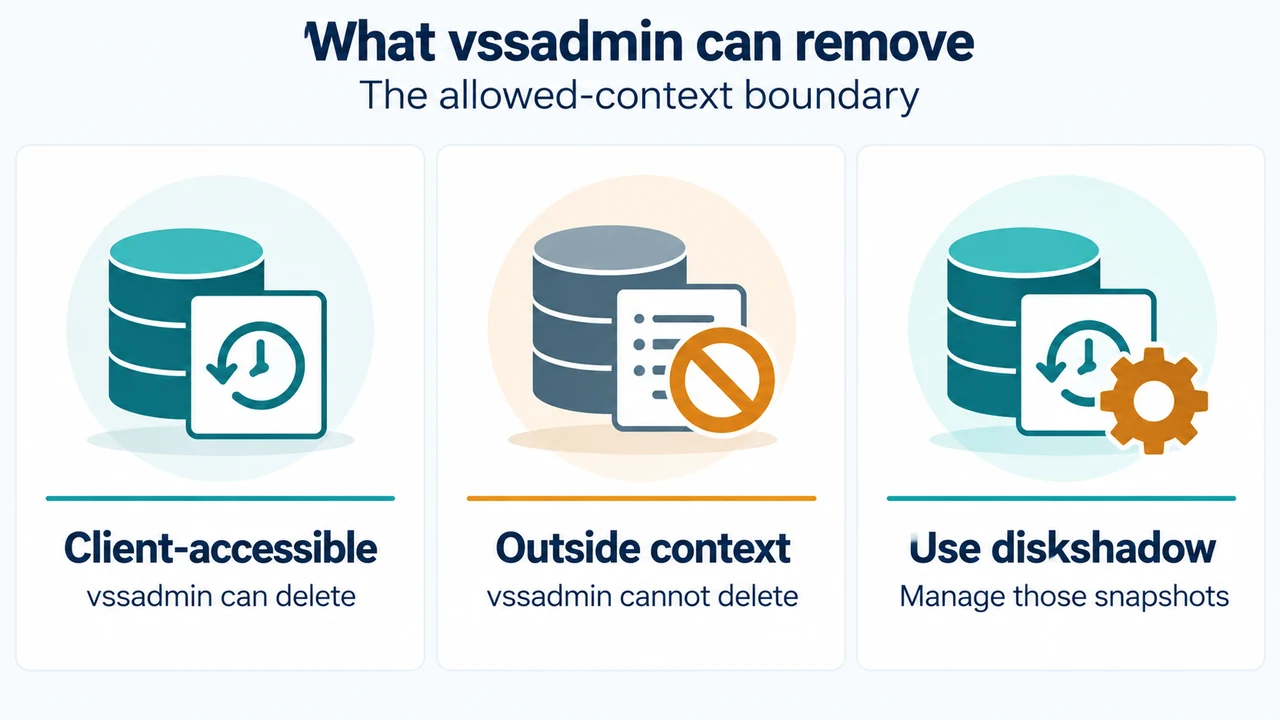
Text version of the diagrams
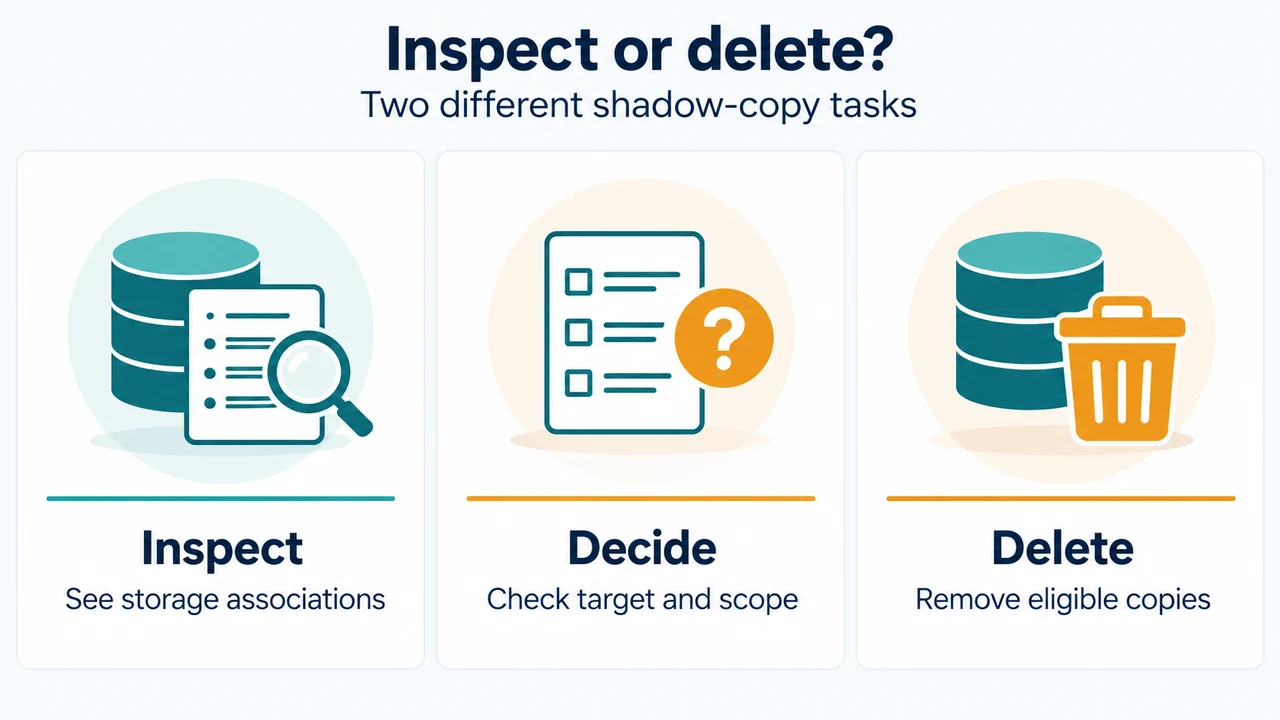
- Inspect or delete?: Inspect — See storage associations; Decide — Check target and scope; Delete — Remove eligible copies
- What vssadmin can remove: Client-accessible — vssadmin can delete; Outside context — vssadmin cannot delete; Use diskshadow — Manage those snapshots
Research Method and Limitations
This answer was prepared directly from supplied public Microsoft documentation excerpts for vssadmin list shadowstorage and vssadmin delete shadows. Material limitations include the lack of visible primary evidence for companion commands (such as detailed syntax for vssadmin list shadows or diskshadow workflows) and the absence of competing coverage or independent experimental validation.