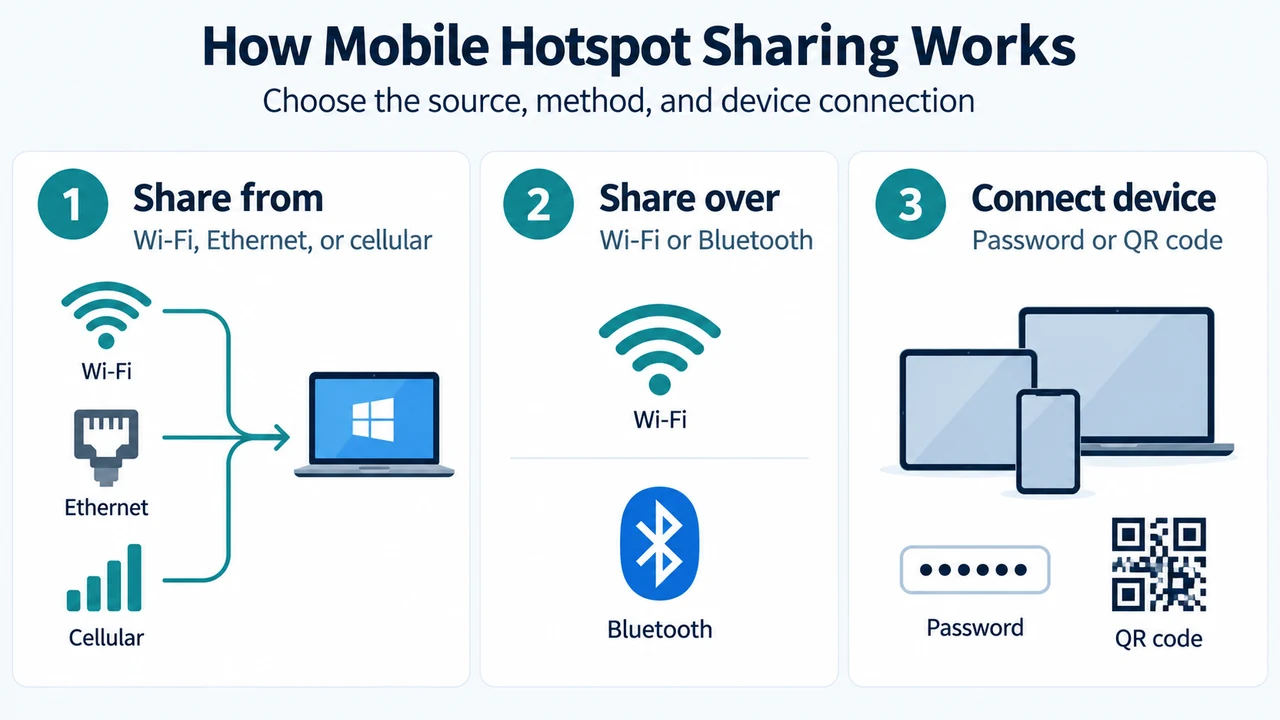
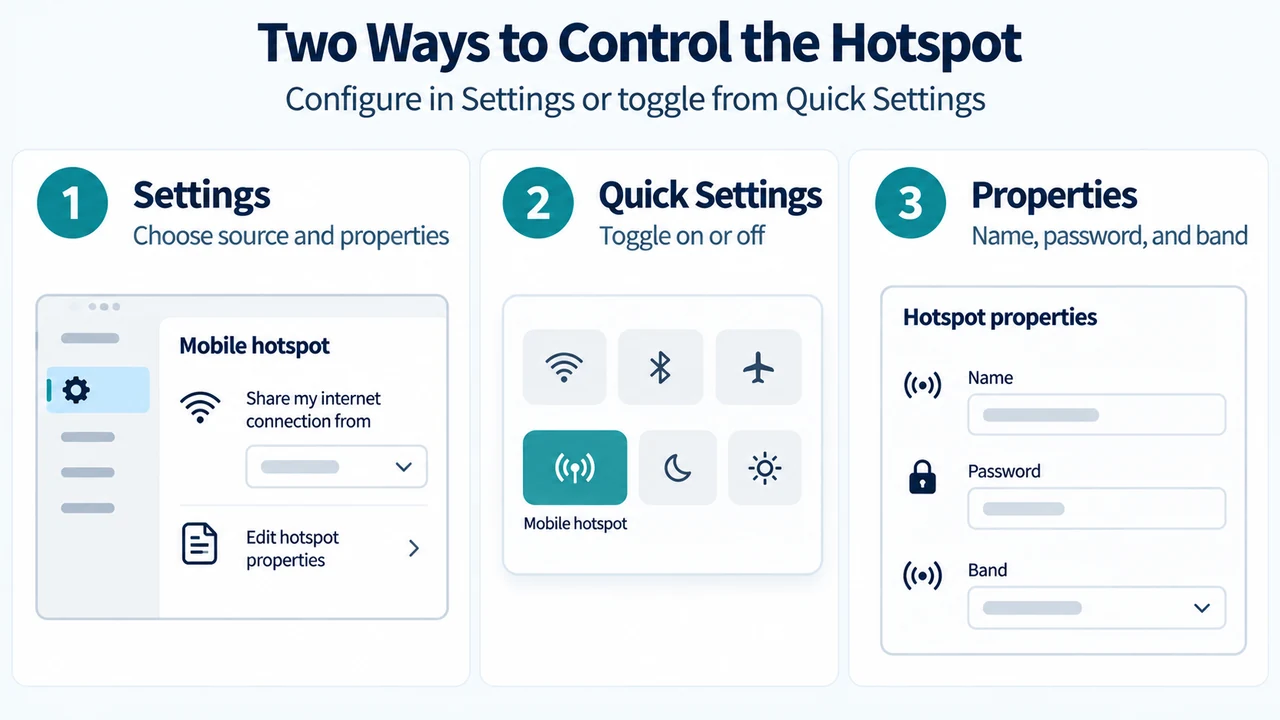
Windows allows you to share an active internet connection—such as Wi-Fi, Ethernet, or cellular data—by turning your Windows 11 device into a mobile hotspot over Wi-Fi or Bluetooth. You can configure and enable the hotspot using the Settings app or toggle it directly from Quick Settings.
Configuring Mobile Hotspot in Settings
To configure and enable your mobile hotspot using the Settings application:
- Open the Settings app on your Windows 11 device.
- Navigate to Network & internet > Mobile hotspot.
- Under Share my internet connection from, choose the internet connection you want to share. If your device shares a cellular data connection, it will use data from your data plan.
- Under Share over, choose how you want to share your connection: Wi-Fi or Bluetooth. Wi-Fi is the default and is usually faster.
- Optionally, expand the Properties section, select Edit, enter a new network name, password, and network band, and then select Save.
- Turn on the Mobile hotspot toggle at the top of the page.
Other devices can connect to the hotspot by going to their Wi-Fi settings, finding the network name, and either entering the password or scanning the QR code.
Using Quick Settings to Toggle the Hotspot
You can also control the mobile hotspot from the taskbar without opening the full Settings menu:
- Select Quick Settings on your taskbar.
- Locate the Mobile hotspot quick action tile. If it is not immediately visible, select the Next page arrow to navigate to the second page of quick actions.
- Select the Mobile hotspot quick action to toggle the hotspot on or off. The hotspot starts with default properties or whatever settings were last used in Settings.
- When turned on, the quick action displays the count of devices currently connected.
- To view or manage properties such as the network password, or to set up the mobile hotspot if you have not done so yet, right-click (or long-press) the Mobile hotspot quick action and select Go to Settings.
Research Method and Limitations
This guide was prepared strictly from the supplied public Microsoft Support excerpt describing mobile hotspot setup in Windows 11. No competing or third-party troubleshooting coverage was available during retrieval. The excerpt does not document specific error codes, adapter failure causes, diagnostic band switching protocols, or troubleshooting mechanisms for “We can’t set up mobile hotspot” errors, so no hands-on testing, hardware diagnostics, or speculative failure causes are included.
Text version of the diagrams
- How Mobile Hotspot Sharing Works: Share from — Wi-Fi, Ethernet, or cellular; Share over — Wi-Fi or Bluetooth; Connect device — Password or QR code
- Two Ways to Control the Hotspot: Settings — Choose source and properties; Quick Settings — Toggle on or off; Properties — Name, password, and band