If a Windows 11 PC connects to a Wi‑Fi 7 network but the connection properties show only one band, first confirm the scope: Microsoft says Wi‑Fi 7 is available starting with Windows 11 version 24H2, and MLO is shown when the connection uses more than one band. A single displayed band can therefore mean that the connection is using one link, rather than proving that the adapter or router is broken.
What one band means in Windows
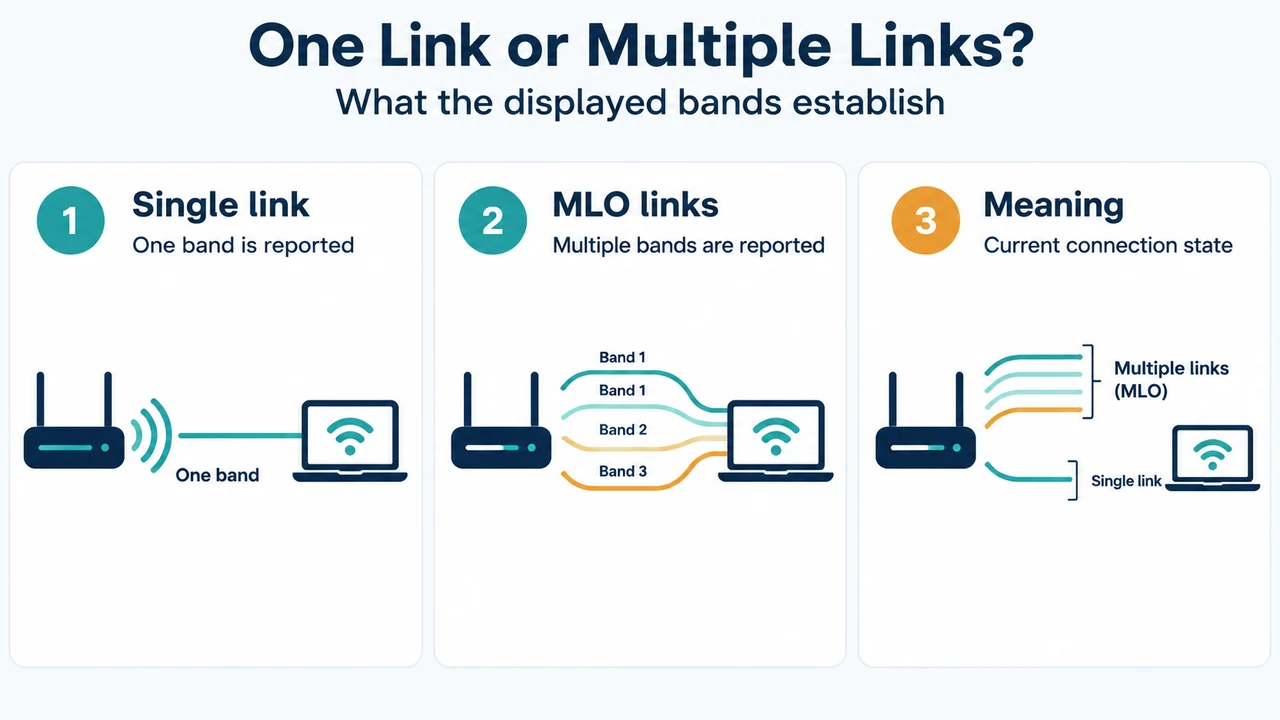
Microsoft describes Multi-Link Operation (MLO) as using multiple bands at the same time. In Windows, open Settings > Network & internet > Wi‑Fi > your network properties and check Network band (channel). Microsoft’s example says that more than one band, such as 5 GHz and 6 GHz or 2.4 GHz and 5 GHz, indicates MLO support for that connection.
Microsoft’s WiFiCx driver documentation makes the boundary clearer: an MLO connection reports link information for each link, while a non-MLO connection provides information for a single link. The visible result is therefore consistent with either a working single-link connection or an MLO connection that has not been established. The supplied documentation does not identify one universal cause for every single-band result.
Check Windows 11 version first
Wi‑Fi 7 support begins with Windows 11 version 24H2. To check for available updates, Microsoft’s documented path is Start > Settings > Windows Update > Check for updates.
This check establishes the Windows requirement only. It does not establish that the PC’s adapter, driver, access point, or security configuration supports MLO.
Check what the adapter reports
Microsoft recommends using the built-in netsh capability report. Open Command Prompt or Terminal and run:
netsh wlan show driversIn the output, check Radio types supported for 802.11be, which represents Wi‑Fi 7. Also check Authentication and cipher supported in infrastructure mode for WPA3 Personal and, where relevant, WPA3 Enterprise.
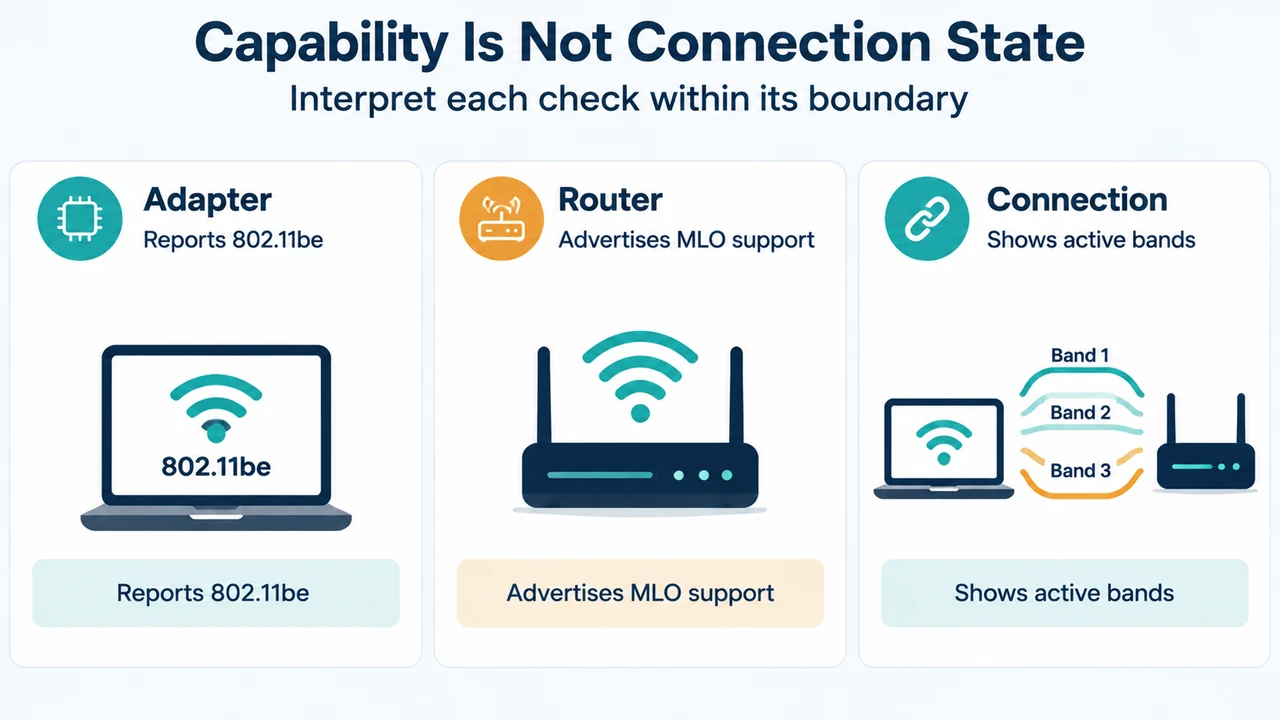
This report is a capability check. It does not prove that the current connection is using multiple links. Windows separately identifies the current connection’s bands in the Wi‑Fi properties described above.
Check WPA3 and the router requirement
Microsoft lists a Wi‑Fi 7-capable router, a Wi‑Fi 7-capable wireless adapter, Windows 11, and WPA3 support among the requirements for using the newer Wi‑Fi features. Check the router’s supplied documentation or the manufacturer’s public support page for its supported Wi‑Fi standard and WPA3 capability.
These are documented requirements, not a guarantee that every compatible setup will use MLO. The Microsoft material explains that MLO uses multiple bands, while the driver documentation says Windows determines MLO capability from driver-reported information and the access point’s advertised Multi-Link information.
Check the driver and the access point boundary
Microsoft’s WiFiCx documentation says that the driver must report MLO capabilities to Windows. It also says that Windows parses the access point’s beacon information for Multi-Link and Reduced Neighbor Report information when identifying MLO support. This creates two separate checks:
- Adapter and driver: the driver must report the capabilities Windows needs for MLO.
- Access point: the access point must advertise Multi-Link support and support the connection’s required authentication and cipher combinations.
The supplied Microsoft excerpts do not provide a universal driver-download procedure or a router-specific MLO switch. Use the PC, adapter, or motherboard manufacturer’s documentation for the correct driver source, and use the router manufacturer’s documentation for its configuration and supported security modes.
Use the result to choose the next safe step
| What you find | What it establishes |
|---|---|
| Windows is earlier than 24H2 | The documented Windows 11 Wi‑Fi 7 requirement is not met. |
802.11be is absent from the adapter report |
The supplied Microsoft check does not show Wi‑Fi 7 capability for that adapter. |
| WPA3 is absent from the reported authentication options | The supplied Microsoft check does not show the documented WPA3 capability. |
| The router or adapter documentation does not list the required support | Compatibility remains unconfirmed; check the relevant manufacturer documentation. |
| All checks pass but Network band shows one band | The connection is currently reported as a single-link state; the supplied excerpts do not establish which component prevents MLO. |
Limitations
This article was prepared from the supplied public excerpts from Microsoft Support and Microsoft Learn, retrieved September 20–21, 2026. The Microsoft Learn excerpt is driver-focused and does not provide a consumer troubleshooting sequence; it also states that the page was last updated May 22, 2024. The supplied PCWorld and TP-Link excerpts were used only to review competing coverage, not as authority for the technical requirements. Their excerpts are truncated, so this article makes no claim about their full procedures. This is research-based guidance, with no hands-on testing, lab measurements, benchmark, or comprehensive hardware and router review.
Text version of the diagrams
- One Link or Multiple Links?: Single link — One band is reported; MLO links — Multiple bands are reported; Meaning — Current connection state
- Capability Is Not Connection State: Adapter — Reports 802.11be; Router — Advertises MLO support; Connection — Shows active bands