If Ubuntu 26.04.1 does not show a Wi‑Fi option, first determine which kind of problem you have: Wi‑Fi may be turned off, or Ubuntu may not have recognized the adapter as a network device. The official Ubuntu 26.04 Desktop Guide recommends checking the connection state before inspecting hardware.
This is a classification guide, not a chipset-specific driver tutorial. It covers Ubuntu 26.04 documentation and the Ubuntu 26.04.1 Desktop image listed by Canonical on September 20, 2026. The supplied evidence does not document a complete driver or firmware procedure, so this article stops before recommending one.
Start with the visible Wi‑Fi controls
Make sure the computer is not using a wired connection. If you use an external USB or PCMCIA adapter, check that it is firmly inserted. For an internal card, check whether the computer has a physical wireless switch or keyboard shortcut and make sure it is on.
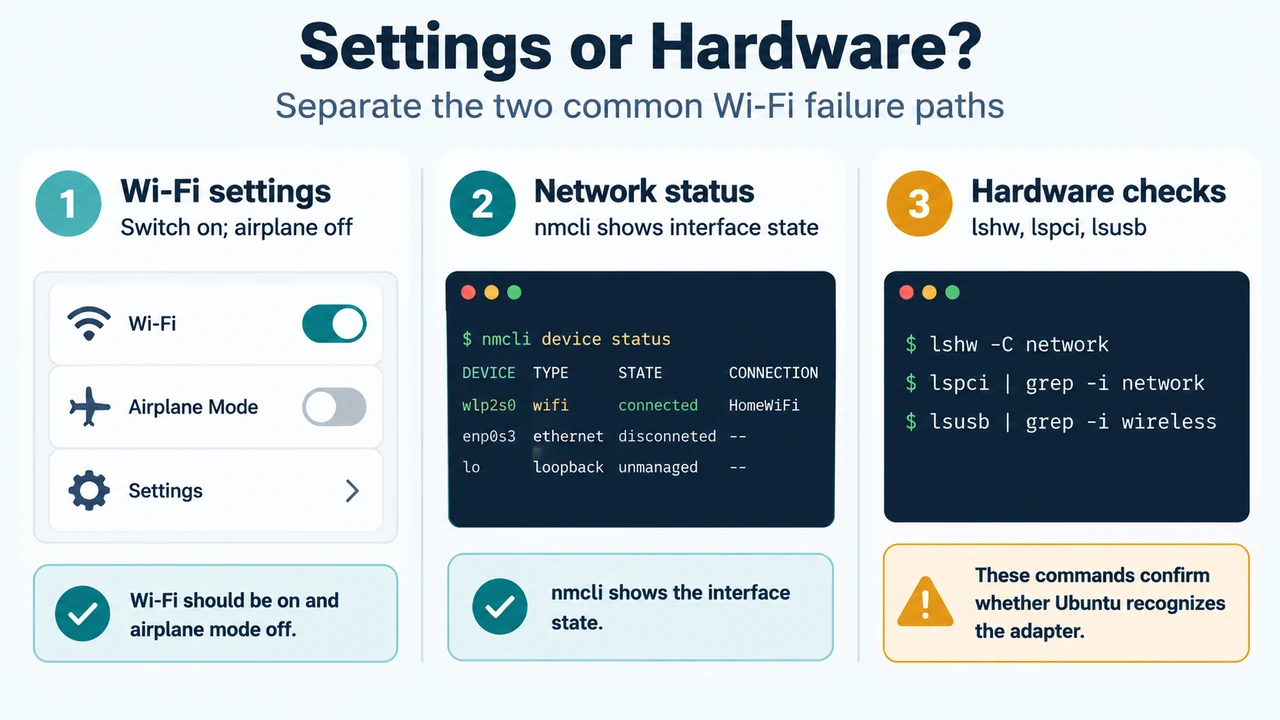
Open the system menu on the right side of the top bar, choose the Wi‑Fi network, and open Wi‑Fi Settings. Confirm that the Wi‑Fi switch is on and that Airplane Mode is off. These checks address a connection that is disabled; they do not prove that Ubuntu has detected the adapter.
Use nmcli to check whether Ubuntu sees a wireless interface
Open Terminal and run:
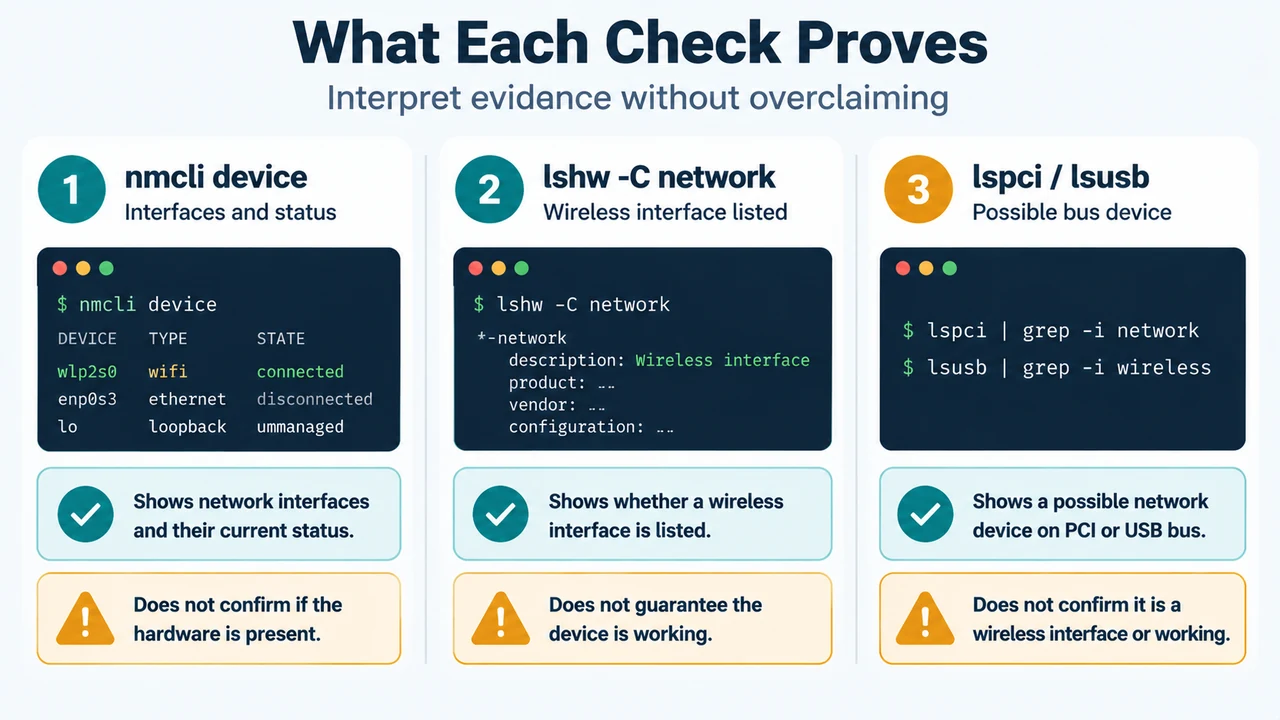
nmcli deviceUbuntu’s guide says this command displays network interfaces and their connection status. Look for an entry related to the wireless adapter. If its state is connected, the adapter is working and connected to the wireless router according to the guide.
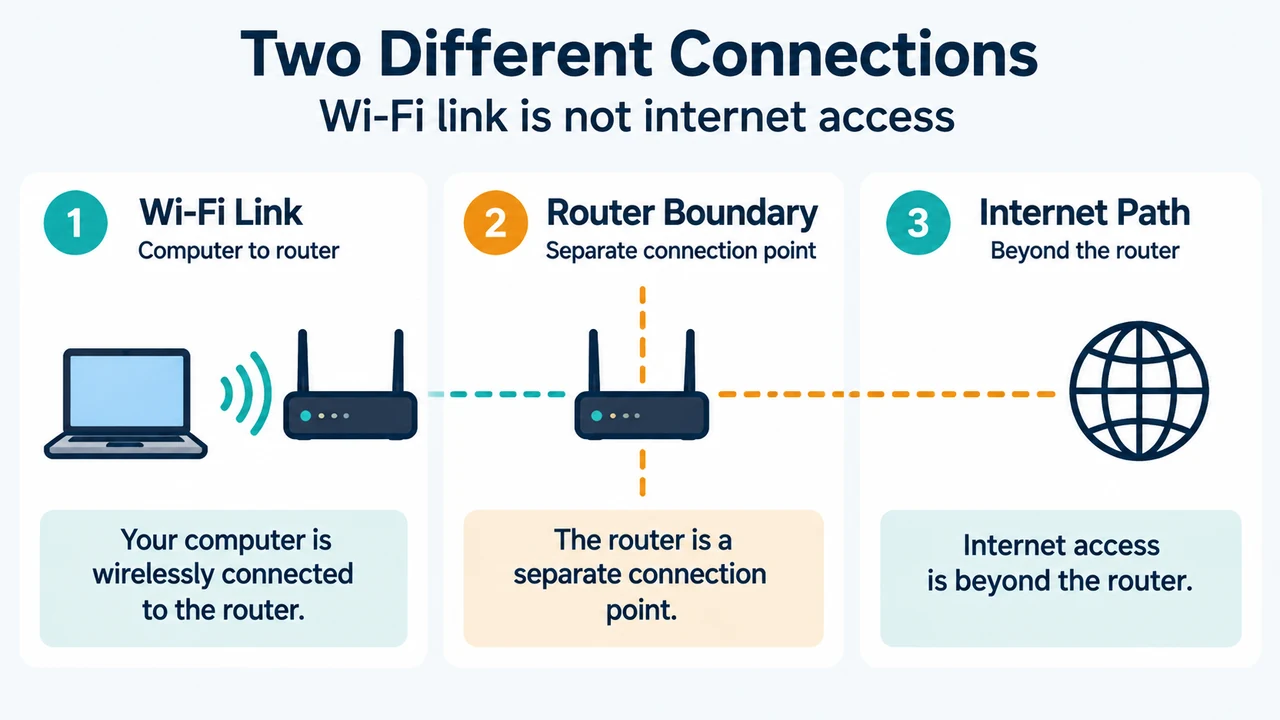
If the computer is connected to the router but the internet still does not work, the Ubuntu documentation points to the router setup or the internet service provider as possible next areas to check. That is a different situation from an adapter that is absent from the device list.
If nmcli device does not show a connected wireless device, continue with hardware recognition checks. The command alone does not identify the reason an adapter is missing.
Check whether the wireless adapter was recognized
Run:
lshw -C networkLook for a section named Wireless interface. The Ubuntu 26.04 guide gives a wireless interface with a product and vendor description as an example of what detected hardware may look like. The example is illustrative, so your product name and vendor can differ.
If the command returns an error, the guide says that the lshw program may need to be installed. The supplied excerpt does not provide an installation command, so this article does not add one.
If lshw does not list a wireless interface
Check the connection type. The Ubuntu guide separates internal PCI adapters from USB adapters.
Internal PCI adapter
Run:
lspciLook for a device marked Network controller or Ethernet controller. Wireless-related entries may include words such as wireless, WLAN, wifi or 802.11.
If you find a likely wireless entry, the Ubuntu guide says to continue to its Device Drivers step. The supplied excerpt does not show that step’s commands or establish which driver applies to a particular chipset. Do not treat the presence of an lspci entry as proof that the driver or firmware is working.
USB adapter
Run:
lsusbLook for a device that appears to refer to wireless or networking. The guide notes that 3G or mobile-broadband adapters can look similar to Wi‑Fi adapters, so identify the device carefully.
If a likely wireless device appears, the Ubuntu guide again directs the reader toward the Device Drivers step. The supplied evidence does not provide a verified Ubuntu 26.04.1 driver or firmware command for that device.
What each check can establish
| Check | What the supplied Ubuntu guide supports | What it does not prove |
|---|---|---|
| Wi‑Fi Settings | Whether Wi‑Fi is switched on and Airplane Mode is off. | That the adapter is detected or has a working driver. |
nmcli device |
Network interfaces and their connection status; connected indicates a working adapter connected to the router. |
Why a missing wireless entry is absent. |
lshw -C network |
Whether the system lists a Wireless interface, subject to the command working. | Which driver or firmware package is correct. |
lspci |
Whether an internal PCI device appears as a possible network controller. | That the device is a functioning Wi‑Fi interface. |
lsusb |
Whether a USB device appears to be a wireless or network device. | That a similar-looking mobile-broadband device is Wi‑Fi. |
How to classify the result
- If Wi‑Fi is off or Airplane Mode is on, correct that setting and check the Wi‑Fi menu again.
- If
nmcli deviceshows a connected wireless device, the adapter-to-router connection is established; remaining internet access problems are outside the missing-adapter classification. - If
lshw -C networklists a Wireless interface, Ubuntu recognizes wireless hardware at that level. The supplied excerpts do not establish the next driver-specific action. - If
lshw -C networkdoes not list one, uselspcifor an internal adapter orlsusbfor a USB adapter to see whether the hardware appears in its bus listing. - If the relevant bus listing also lacks the adapter, the Ubuntu guide says the adapter may not be working properly or the correct drivers may not be installed. It directs readers to distribution-specific support, but the supplied evidence does not identify the cause or provide a safe universal repair.
Scope and limitations
This article was prepared from the supplied public Ubuntu documentation excerpts retrieved on September 20, 2026, plus one competitor excerpt used only to compare coverage. The Ubuntu pages identify the material as Ubuntu 26.04 Desktop Guide content, and Canonical lists Ubuntu 26.04.1 LTS as the current desktop image at the retrieval date. The supplied passages do not document rfkill, a complete driver or firmware workflow, chipset-specific fixes, or a guaranteed resolution. No hands-on test, lab measurement, benchmark, or comprehensive review was performed.
Text version of the diagrams
- Settings or Hardware?: Wi-Fi settings — Switch on; airplane off; Network status — nmcli shows interface state; Hardware checks — lshw, lspci, lsusb
- What Each Check Proves: nmcli device — Interfaces and status; lshw -C network — Wireless interface listed; lspci / lsusb — Possible bus device