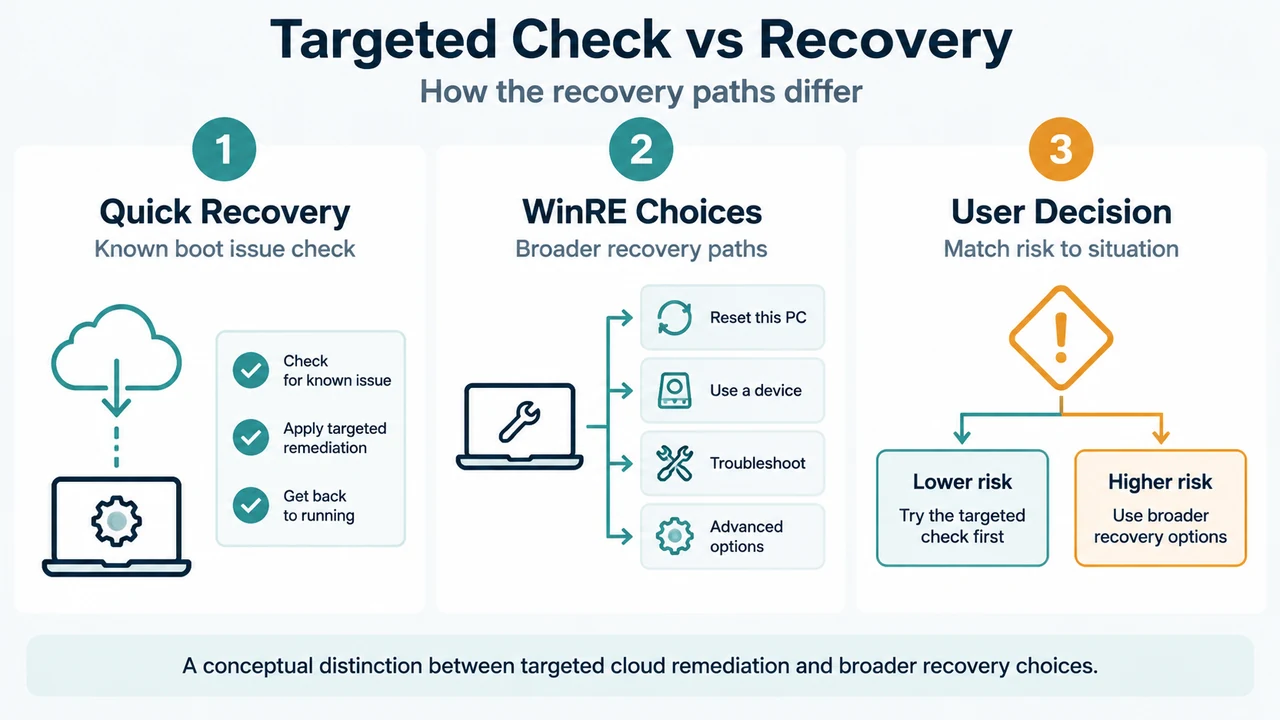
If a Windows 11 version 24H2 or later PC cannot start after a recent update or system change, preview Point-in-time restore may restore a recent automatic restore point. The process starts locally in the Windows Recovery Environment (WinRE) and requires the BitLocker recovery key for encrypted volumes.
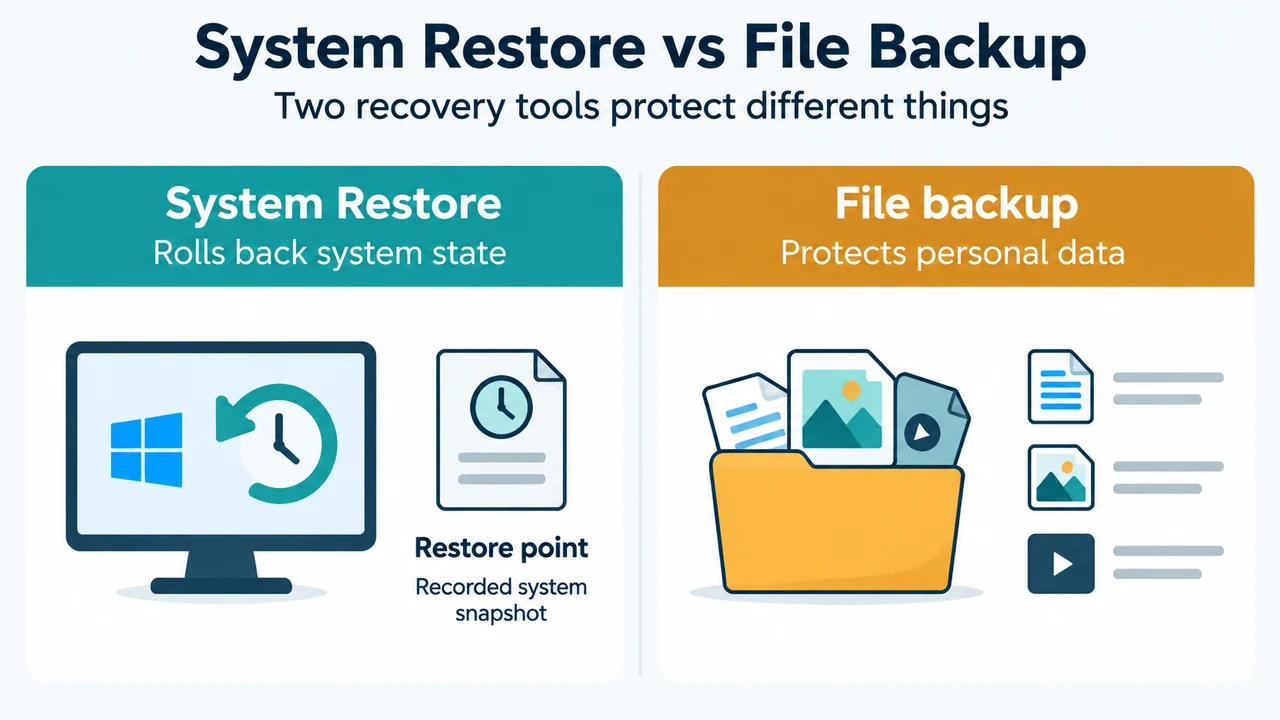
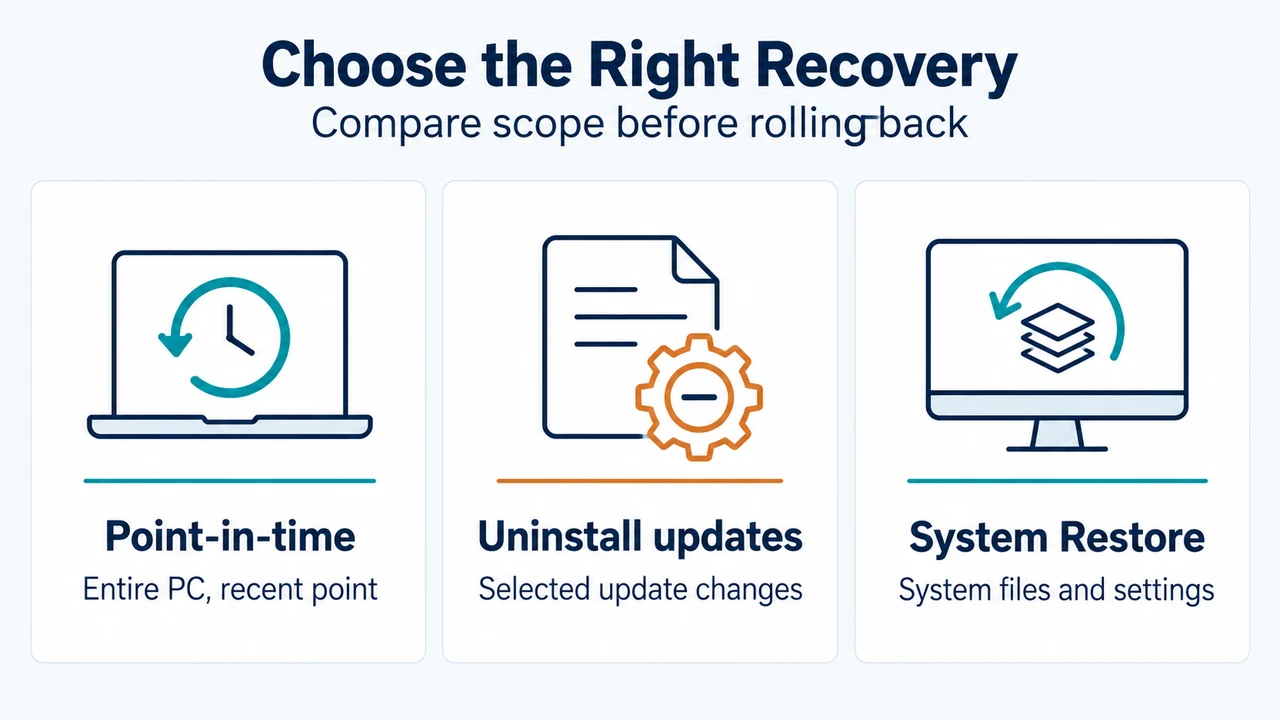
Point-in-time restore is not the same as uninstalling an update or using System Restore. It is a comprehensive rollback: user files, apps, settings, passwords, certificates, and keys can be reverted, so changes made after the selected point can be lost. On a device with multiple volumes, only the volume containing the operating system is restored.
When it fits
Consider it when a suitable automatic restore point predates the startup problem and the device runs Windows 11 version 24H2 or later. The supplied evidence does not establish that every update or startup failure can be fixed by this feature, and restoration can fail or leave the device unable to boot.
Limits to check
- Preview and access: The documented preview process starts locally in WinRE.
- BitLocker: An encrypted volume requires its BitLocker recovery key.
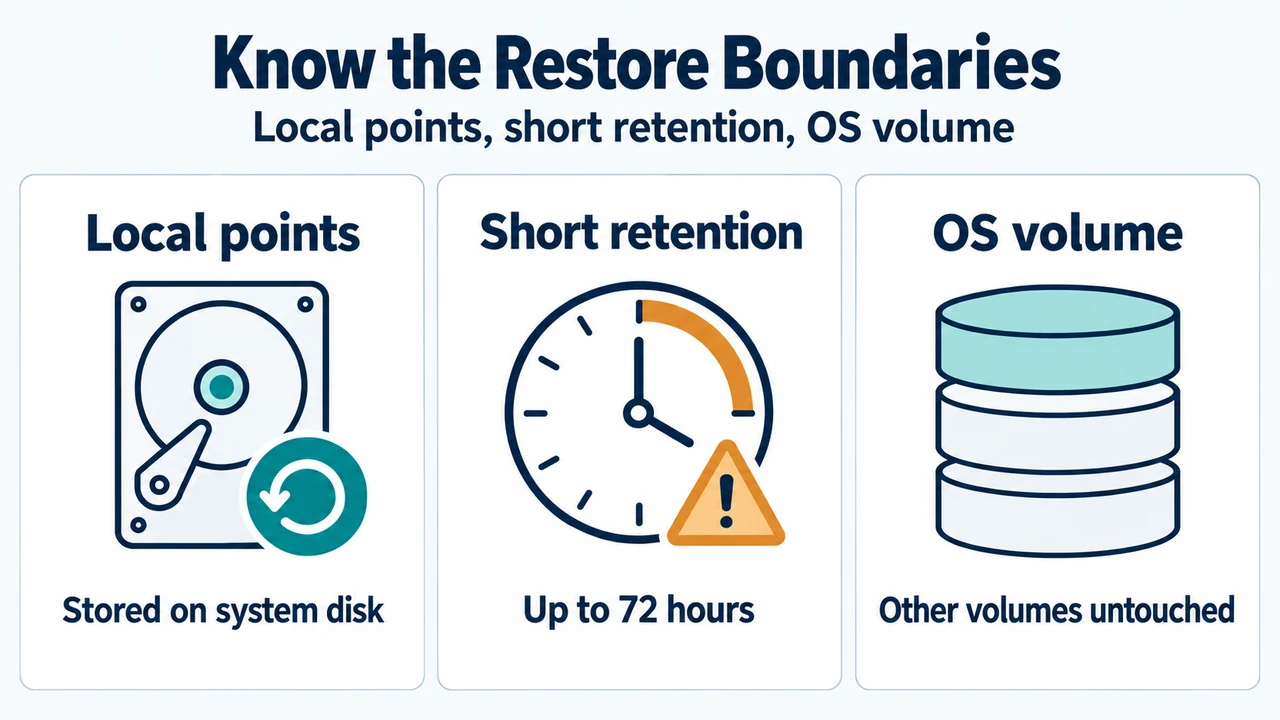
- Retention: Restore points are kept for up to 72 hours, but capture and removal do not necessarily occur exactly at the configured frequency or retention boundary.
- Storage: Points can be removed when free space reaches or drops below 20 GB, when VSS storage exceeds its configured limit, or when Windows reports low-space conditions.
- Edition: A point created under a different Windows edition or SKU cannot be used with the currently installed edition.
- Multiple volumes: Only the OS volume is restored; other volumes are outside this documented restore scope.
Restore points are automatic and stored locally. They are not a permanent backup, and the feature does not guarantee capture at an exact frequency.
What can be lost
The selected point represents the system state at a specific date and time. Changes made afterward can include user files, apps, settings, passwords, certificates, and keys. Files stored in OneDrive or another cloud service are not affected according to the supplied recovery guidance, although the Learn excerpt notes that local and cloud versions can conflict after a restore.
Restoration can fail because of insufficient free space, changing EFS-encrypted files, powering off during the process, or file-system corruption. Certain configurations, corruption, or sudden power loss can also prevent a successful boot after rollback. Keep the device connected to power and do not turn it off during restoration.
Start from WinRE
- Enter WinRE after repeated boot failures, or open Settings > Recovery > Advanced startup and select Restart now.
- Select Troubleshoot > Point-in-time restore.
- Enter the BitLocker recovery key if requested.
- Select a restore point from before the problem.
- Review the restore point, OS version, and data-loss warning.
- Select Continue, then select Restore.
When restoration completes, the device is documented as booting back into the main operating system. The supplied evidence does not guarantee a completion time or a successful outcome.
Consider another option first
Uninstall updates
For a problem that began after a recent Windows update, use Troubleshoot > Advanced options > Uninstall updates in WinRE. This removes changes from the selected update while keeping personal files and apps. Some updates cannot be uninstalled.
System Restore
System Restore rolls back system files and settings while keeping personal files. It may affect recently installed apps, drivers, updates, or settings. The supplied recovery guidance identifies it as an option when Point-in-time restore is unavailable or when a restore point older than three days is needed.
Further recovery
If no suitable point exists or WinRE options fail, a previously created recovery drive or Windows installation media may be used. Reinstalling Windows can remove data from the device and is not equivalent to Point-in-time restore.
Practical decision
Choose Point-in-time restore only when the device meets the version requirement, a suitable automatic point exists, the required BitLocker key is available, and you accept the rollback scope—including the loss of later changes and the fact that only the OS volume is restored on multi-volume devices. Choose Uninstall updates for an update-specific problem when keeping files and apps is the documented priority. Choose System Restore for its narrower system-file and settings rollback or when an older point is needed.
This answer was prepared from the supplied public Microsoft source excerpts. The Microsoft Learn excerpt required authorization and was truncated, so only its visible statements were used. The supplied material contained no accessible competing coverage and no hands-on testing, benchmark, or comprehensive review was performed.
Text version of the diagrams
- Choose the Right Recovery: Point-in-time — Entire PC, recent point; Uninstall updates — Selected update changes; System Restore — System files and settings
- Know the Restore Boundaries: Local points — Stored on system disk; Short retention — Up to 72 hours; OS volume — Other volumes untouched
Sources and limitations
Microsoft: Recovery options in Windows documents the recovery choices, WinRE paths, version scope, BitLocker requirement, data-loss distinctions, and alternatives. Microsoft Learn: Point-in-time restore provides the visible preview details on automatic points, retention, storage, restoration, risks, edition limits, and the multi-volume boundary. Statements outside the visible excerpts are outside this answer’s scope.