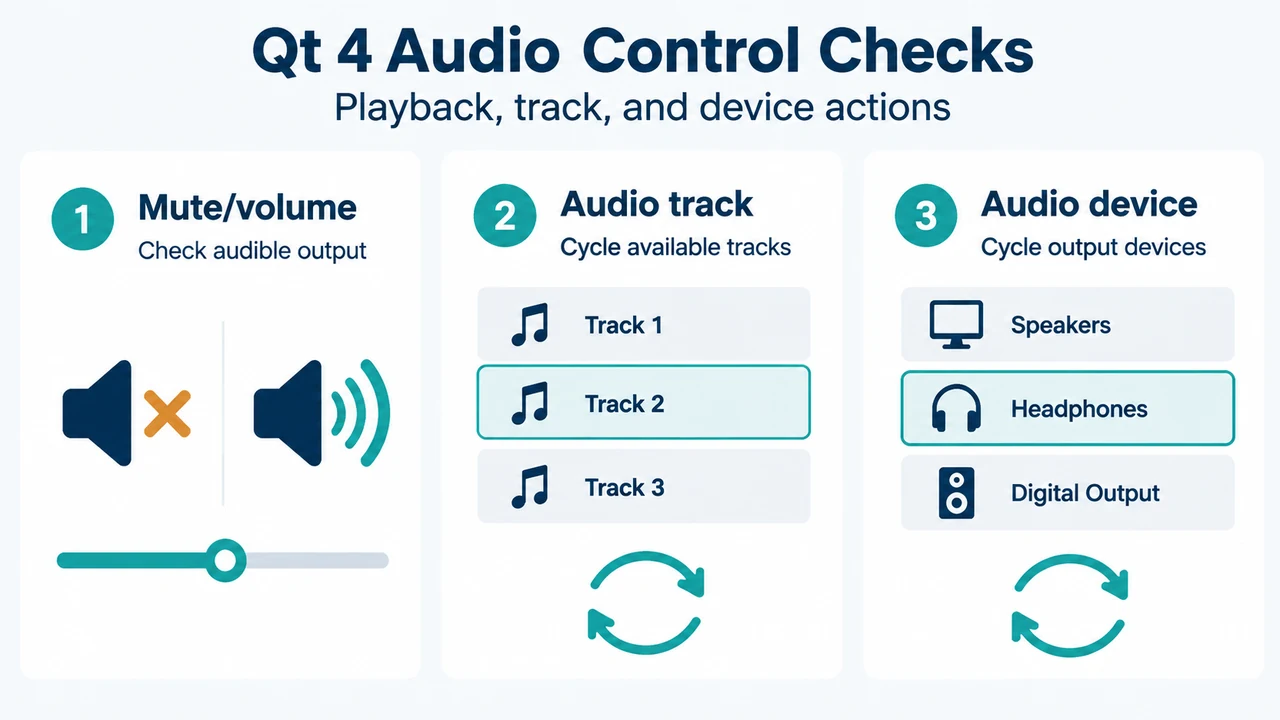
When VLC media player displays video without audio, documented controls in the Qt 4 interface allow checks for audio mute, volume levels, stream audio tracks, and audio output devices. If incorrect settings or a broken plugin cache cause silent playback, official VideoLAN documentation details procedures to reset preferences and cache across desktop and mobile operating systems.
Checking Audio Levels, Tracks, and Devices (Qt 4 Interface)
The keyboard shortcuts below are documented specifically for VLC’s Qt 4 interface during playback:
- Mute: Press
Mto toggle mute. - Volume Up: Press
Ctrl + Up Arrowto raise volume. - Volume Down: Press
Ctrl + Down Arrowto lower volume. - Cycle Audio Track: Press
Bto cycle through available audio tracks on the media. - Cycle Audio Device: Press
Shift + Ato cycle through available audio devices. - Audio Menu: Press
Alt + Ato open the Audio menu. - Preferences: Press
Ctrl + Pto open the Preferences dialog.
Resetting Preferences and Cache Files
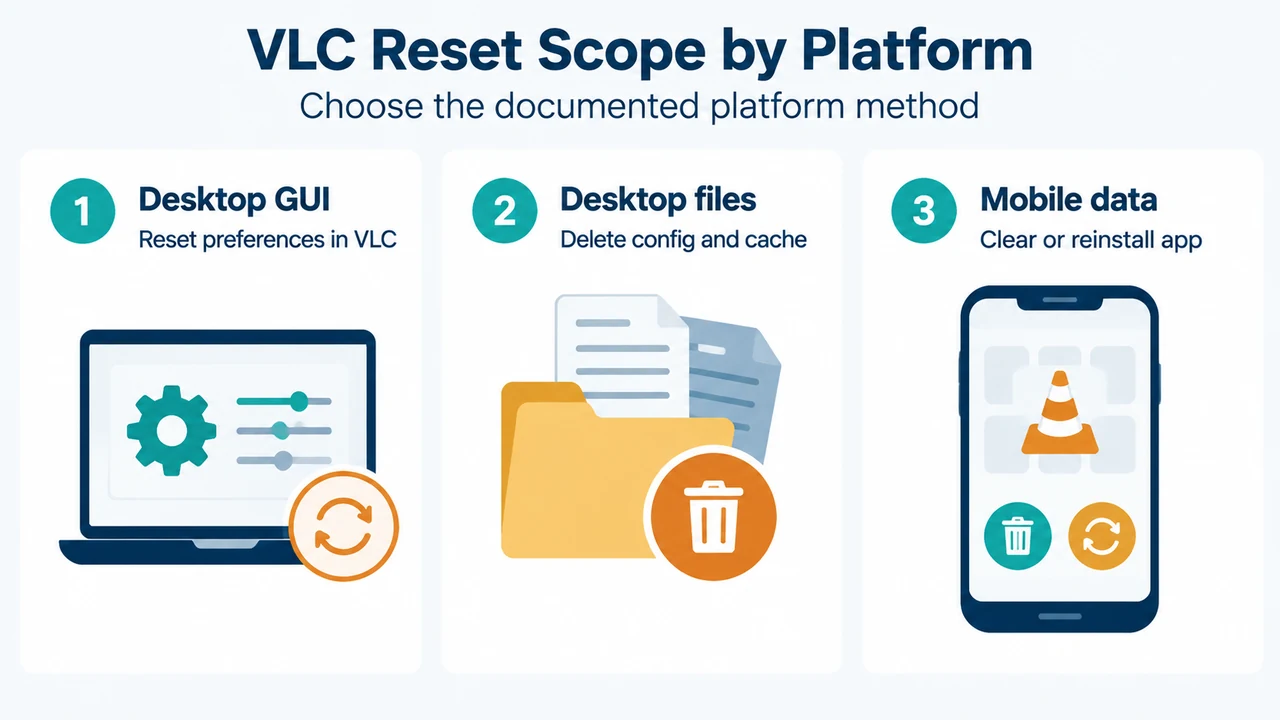
VideoLAN notes that many VLC issues stem from incorrect settings or a broken plugin cache. Before performing resets or manual deletions, note that these procedures remove custom configuration settings and cache files. On mobile platforms, clearing data or reinstalling permanently deletes the media database, media library, and playback history.
Resetting Preferences Within the Application
If VLC can be opened:
- Open the Tools menu and choose Preferences (or press
Ctrl + P). - Click the Reset preferences button. VideoLAN notes this might not solve every issue; if silent playback persists, manual deletion procedures may be used.
Platform-Specific Reset and Deletion Procedures
- Windows (Start Menu Shortcut): If VLC was installed normally, navigate to
All programs > VideoLAN > Reset VLC media player preferences and cache files. - Windows (Manual Deletion): Open File Explorer, type
%APPDATA%into the address bar, and press Enter to open the AppData folder. Locate and delete the folder namedvlc. - macOS (Within VLC): Open VLC, choose
VLC menu > Preferences, and click Reset All in the bottom-left corner. VLC requests confirmation, resets, and restarts itself. - macOS (Manual Deletion): Quit VLC. Open Terminal and enter:
defaults delete org.videolan.vlcIn Finder’s Go menu, select Go To Folder, navigate to
~/Library/Preferences, and remove all files matchingorg.videolan.vlc.*. - GNU/Linux: In a terminal, run
vlc --reset-config, or delete the~/.config/vlcand~/.cache/vlcfolders. Older versions of VLC stored data in~/.vlc. - BeOS: Delete the
config/settings/vlcrcfolders. - Android (Settings): Open device Settings, navigate to Applications > VLC, and tap Clear data (removes all saved data and settings).
- Android (Within Application): In VLC, go to Preferences > Other to clear history and the media database.
- iOS: Delete the app from SpringBoard and redownload it from the App Store, which resets all settings and the media library.
Research Methodology and Limitations
This article was prepared strictly from public excerpts of official VideoLAN Wiki documentation: “QtHotkeys” (last edited February 10, 2019) and “VSG:ResetPrefs” (last edited March 15, 2019). Material limits apply: the keyboard shortcuts are documented specifically for VLC’s Qt 4 interface and may not reflect newer or alternative interfaces (such as Qt 5, macOS native interfaces, or skin modes). The primary source texts date from 2019, and applicability to newer VLC releases or major version redesigns is not established by the visible evidence. The excerpts list hotkeys by action description without diagnostic flowcharts or operating system mixer instructions. Competing coverage was not available for review, and no independent hands-on testing was conducted.
Text version of the diagrams
- Qt 4 Audio Control Checks: Mute/volume — Check audible output; Audio track — Cycle available tracks; Audio device — Cycle output devices
- VLC Reset Scope by Platform: Desktop GUI — Reset preferences in VLC; Desktop files — Delete config and cache; Mobile data — Clear or reinstall app