Audio issues in Windows 11 can occur due to disconnected cables, muted controls, disabled audio hardware, conflicting enhancements, or stopped background services. The following sequential troubleshooting steps address common sound problems using documented Windows 11 settings.
Research Method and Limitations
This article was prepared strictly from public documentation excerpts provided by Microsoft Support (“Fix sound or audio problems in Windows”). No competing coverage was accessible for comparison. Material limits include truncated passages in the provided reference text, which omit detailed driver updating procedures via Device Manager, specific Control Panel audio format options, and the body text of linked topic-specific articles (such as fixes for distorted sound, audio stopping after Windows updates, Bluetooth issues, and app audio failures when system sounds work). Per-application volume routing within the Volume mixer is also omitted in the source excerpts. No independent hardware evaluations, benchmarks, or hands-on tests were performed.
Checking Audio Hardware and Volume Controls
Verify physical connections and primary volume settings before modifying system configurations:
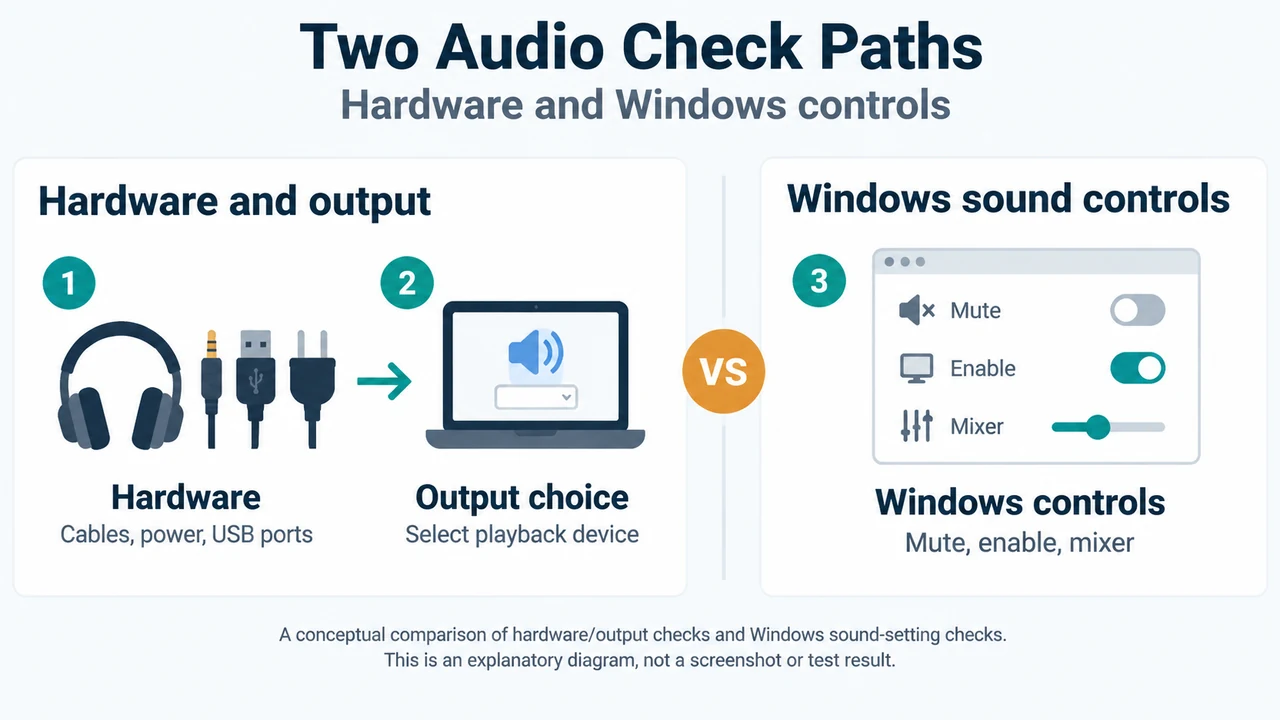
- Check speaker and headphone connections for loose cords or cables, and make sure all cables are plugged in.
- If your setup uses multiple jacks (such as on a surround sound system), make sure cables are connected to the correct jacks. Some systems use a green jack for output and a pink jack for mic input, while others are labeled “headphone” or “microphone.”
- Make sure the power to your audio hardware is turned on.
- Confirm the mute setting is not turned on and try turning up all volume controls. Note that some speakers and individual applications have their own volume controls; verify each one.
- Try connecting USB speakers or headphones to a different USB port.
- Speakers might not play sound while headphones remain plugged in. Disconnect headphones to test speaker playback.
Checking Sound Settings and Enabling Devices
Ensure audio outputs are unmuted and enabled in Windows 11:
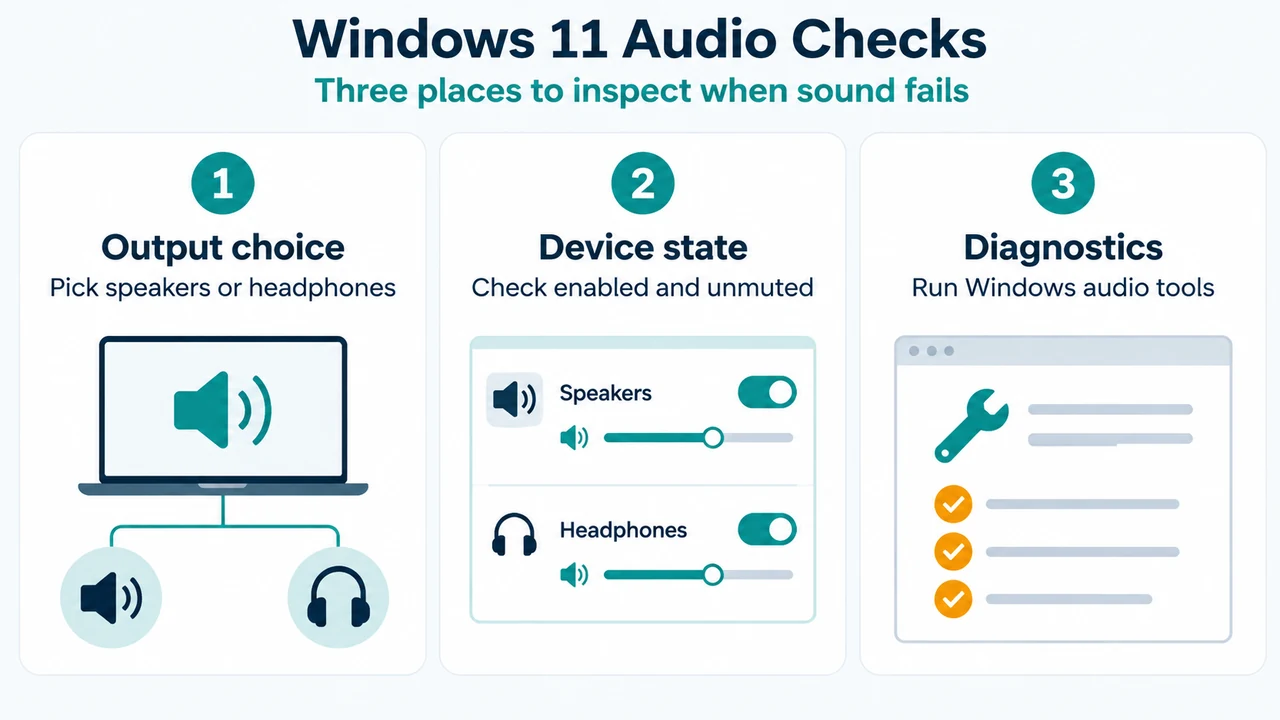
- Select and hold (or right-click) the Speakers icon on the taskbar. If it is not visible, select Show hidden icons in the overflow area.
- Select the arrow to the right of the speaker volume slider (the tooltip displays as Select a sound output) to inspect connected output devices.
- Select the settings icon to the right of the Volume mixer slider (tooltip displays as More mixer settings) to view device controls.
- Confirm none of the volume controls are muted. If a control is muted, an “x” appears next to it.
- To unmute, select the volume control and adjust it to your desired level, or select the Unmute speakers icon.
- To verify that a device has not been disabled:
- Select Start > Settings > System > Sound.
- Under Advanced, select More sound settings.
- Select either the Playback (output) or Recording (input) tab.
- Select your device, then select Properties.
- Next to Device usage, verify that Use this device (enable) is selected from the list for both output and input devices.
Setting the Default Audio Device
Assign your intended hardware as the default playback target:
- Select Start > Settings > System > Sound.
- In the Output section, select the device you want to use for playback. Selecting the device sets it as the default.
- When using USB or HDMI connections, confirm the device is designated as default.
- If you use an external monitor without built-in speakers, confirm that the monitor is not selected as your default output device, as selecting it results in no audio output.
Turning Off Audio Enhancements
Audio processing enhancements can cause playback failures. Disabling them helps isolate audio problems:
- Select Start > Settings > Sound.
- In the Output section, select the active audio device (such as your speakers or headphones).
- On the page that opens, scroll to Advanced settings.
- Set Audio enhancements to Off from the dropdown menu.
Running the Audio Troubleshooter
Windows 11 includes an automated diagnostic tool to detect and resolve sound faults:
- Select Start > Settings > System.
- Select Troubleshoot > Other troubleshooters.
- Locate the Audio section and select the Run button to start the troubleshooter.
Restarting Windows Audio Services
Restarting core audio system services can restore non-responsive sound components:
- In the taskbar search box, type
services, then select Services from the results. - Locate each of the following services:
- Windows Audio
- Windows Audio Endpoint Builder
- Remote Procedure Call (RPC)
- Right-click (or select and hold) each service, select Restart, and then select Yes.
Fixing Microphone Privacy Settings
If audio input issues persist in specific applications, verify microphone access permissions:
- Select Start > Settings > Privacy & security.
- Under App permissions, select Microphone.
- Ensure that both the Microphone access toggle and the Let apps access your microphone toggle are turned On.
- If an issue occurs within a specific app, scroll under Let apps access your microphone and verify that the toggle next to that app is set to On.
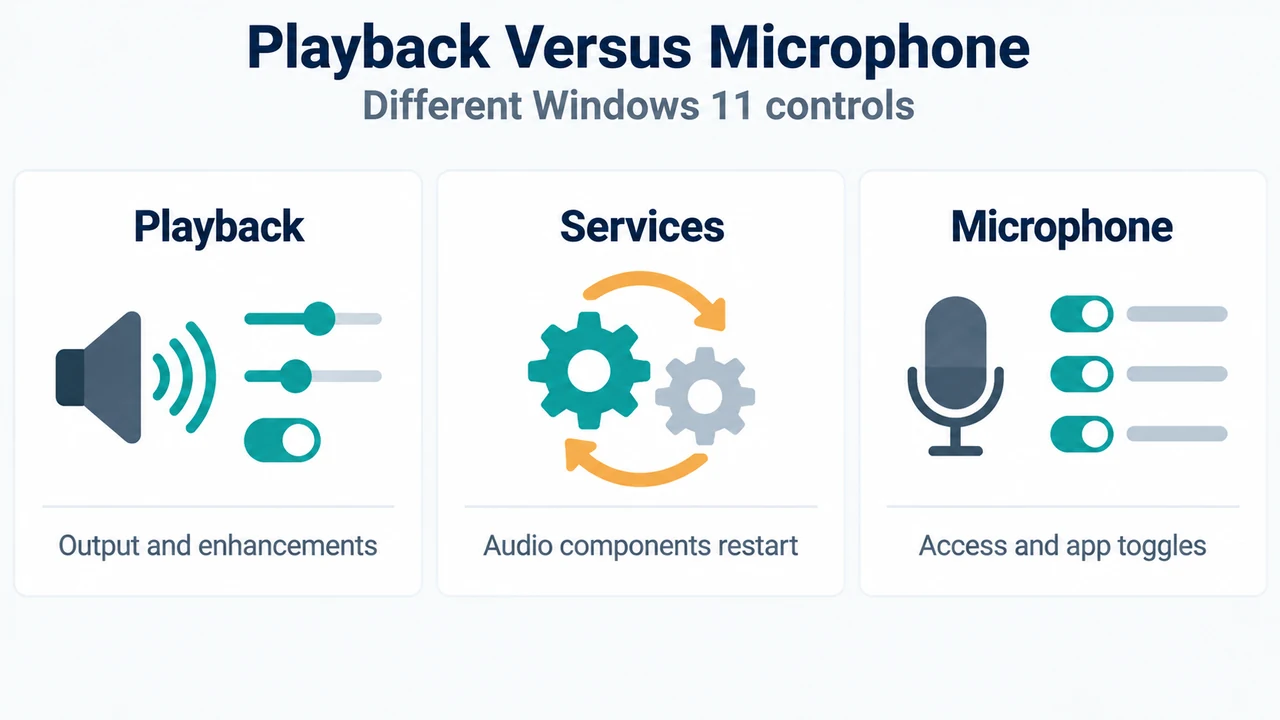
Text version of the diagrams
- Two Audio Check Paths: Hardware — Cables, power, USB ports; Output choice — Select playback device; Windows controls — Mute, enable, mixer
- Playback Versus Microphone: Playback — Output and enhancements; Services — Audio components restart; Microphone — Access and app toggles