In Windows 11 and Windows 10, the Program Compatibility Assistant may display a notification indicating that a driver cannot load or that a security setting is preventing a driver from loading. Under the Microsoft vulnerable driver blocklist documentation, this block occurs when Windows Security features like Memory integrity, Smart App Control, or Windows S mode are active.
Documented Role of Drivers and the Vulnerable Driver Blocklist
A driver is software that enables communication between the operating system and a hardware device, such as a keyboard or webcam. Because drivers handle requests directly for devices, they operate with sensitive access across your system.
Windows 11 maintains a vulnerable driver blocklist that targets drivers meeting specific risk criteria:
- Drivers with known security vulnerabilities
- Drivers signed with certificates previously used to sign malware
- Drivers that circumvent the Windows Security Model
When Memory integrity, Smart App Control, or Windows S mode is turned on, the vulnerable driver blocklist is enabled automatically.
Memory Integrity and Core Isolation
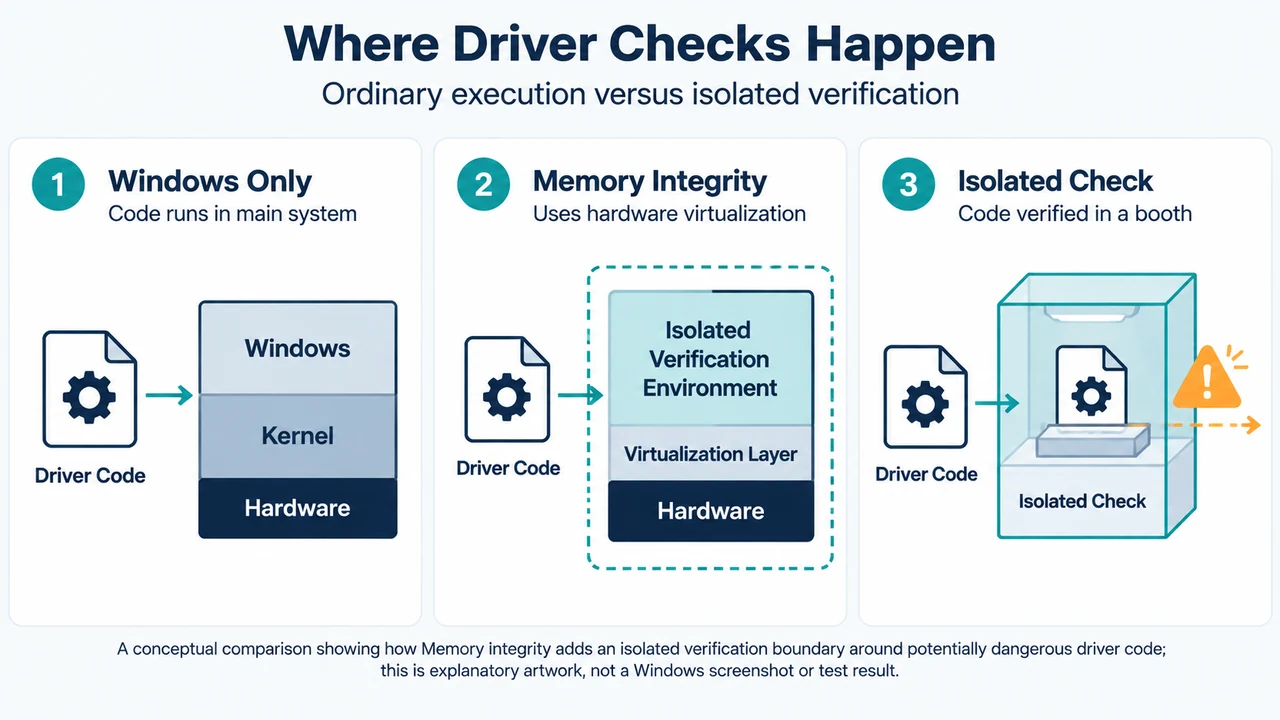
Memory integrity, also known as Hypervisor-protected Code Integrity (HVCI), uses hardware virtualization to create an isolated environment. Code that may be dangerous is passed to Memory integrity inside this virtual environment for verification before it can be handed back to Windows to run. To use Memory integrity, hardware virtualization must be supported and enabled in your system’s UEFI or BIOS.
Supported Actions for Blocked Drivers
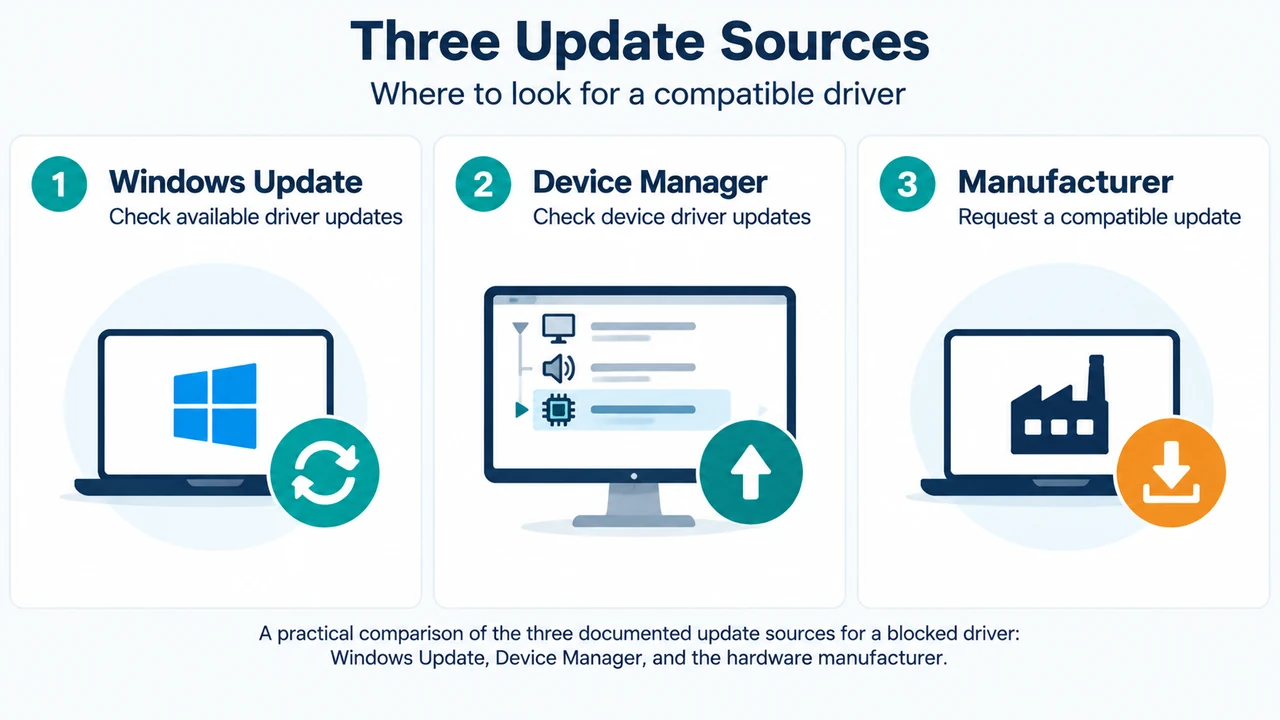
When encountering the Program Compatibility Assistant notification indicating that a driver cannot load, the primary vendor documentation outlines specific update checks:
- Windows Update: Check for updated drivers through Windows Update.
- Device Manager: Check for updated drivers through Device Manager.
- Hardware Manufacturer: If no updates are available through Windows utilities, contact your hardware manufacturer to request an updated driver.
Core Isolation Settings Navigation
In the Windows Security app, you can view the Core isolation settings by selecting Device security > Core isolation details. On this page, Memory integrity provides an On / Off toggle button. The specific features visible on the Core isolation page vary depending on your Windows version and installed hardware components.
If the driver issue remains unaddressed, the functionality supported by that driver may no longer work.
Research Method and Limitations
This article was prepared directly from visible public source excerpts from Microsoft support documentation covering Device Security in the Windows Security App. Secondary competitor excerpts were reviewed strictly for comparing coverage scope and were not used as primary authority for technical instructions. Material limits apply: the supplied vendor documentation excerpts are truncated, and unseen text or features outside the provided passages were not evaluated. No lab benchmarks, hands-on tests, or speculative workarounds were performed.
Text version of the diagrams
- Where Driver Checks Happen: Windows Only — Code runs in main system; Memory Integrity — Uses hardware virtualization; Isolated Check — Code verified in a booth
- Three Update Sources: Windows Update — Check available driver updates; Device Manager — Check device driver updates; Manufacturer — Request a compatible update