When a Bluetooth connection frequently drops or requires constant re-pairing in Windows 11, it can interrupt audio playback, file transfers, or peripheral use. According to Microsoft support documentation, this issue is often associated with power-saving settings, outdated drivers, or temporary system glitches.
The following troubleshooting steps outline the documented solutions in Windows 11 to address recurring Bluetooth disconnects.
Run the Automated Bluetooth Troubleshooter
Windows 11 provides automated diagnostics to detect and address Bluetooth issues:
- Open the automated Bluetooth troubleshooter in the Get Help application to run diagnostics and attempt automatic fixes.
- Alternatively, select Start > Settings > System > Troubleshoot > Other troubleshooters, locate Bluetooth, and select Run.
Turn Off Energy Saver Mode
System power-saving features may interfere with Bluetooth connectivity:
- Select the Battery icon on the taskbar.
- Check if Energy Saver Mode is enabled.
- If enabled, turn it off so it will not interfere with Bluetooth connectivity.
Disable Adapter Energy Saving in Device Manager
You can adjust per-device power settings to keep Windows from turning off the Bluetooth adapter:
- Select Start, type
Device Manager, and select it from the search results. - In Device Manager, expand Bluetooth.
- Right-click your Bluetooth device (or adapter).
- Select the Power Management tab.
- Uncheck Allow the computer to turn off this device to save power, then select OK.
Restart the Bluetooth Support Service
Restarting the background service can clear temporary glitches:
- Press Windows key + R to open the Run dialog.
- Type
services.mscand select OK. - Scroll down to Bluetooth Support Service.
- Right-click Bluetooth Support Service and select Restart.
Remove and Re-Pair the Bluetooth Device
When experiencing connection difficulties with a specific device, removing and pairing it again is a documented troubleshooting step:
- Select Start > Settings > Bluetooth & devices > Devices.
- In Devices, select More options (three dots) next to the device having problems connecting.
- Select Remove device > Yes.
- Pair the device again according to the device’s pairing procedure.
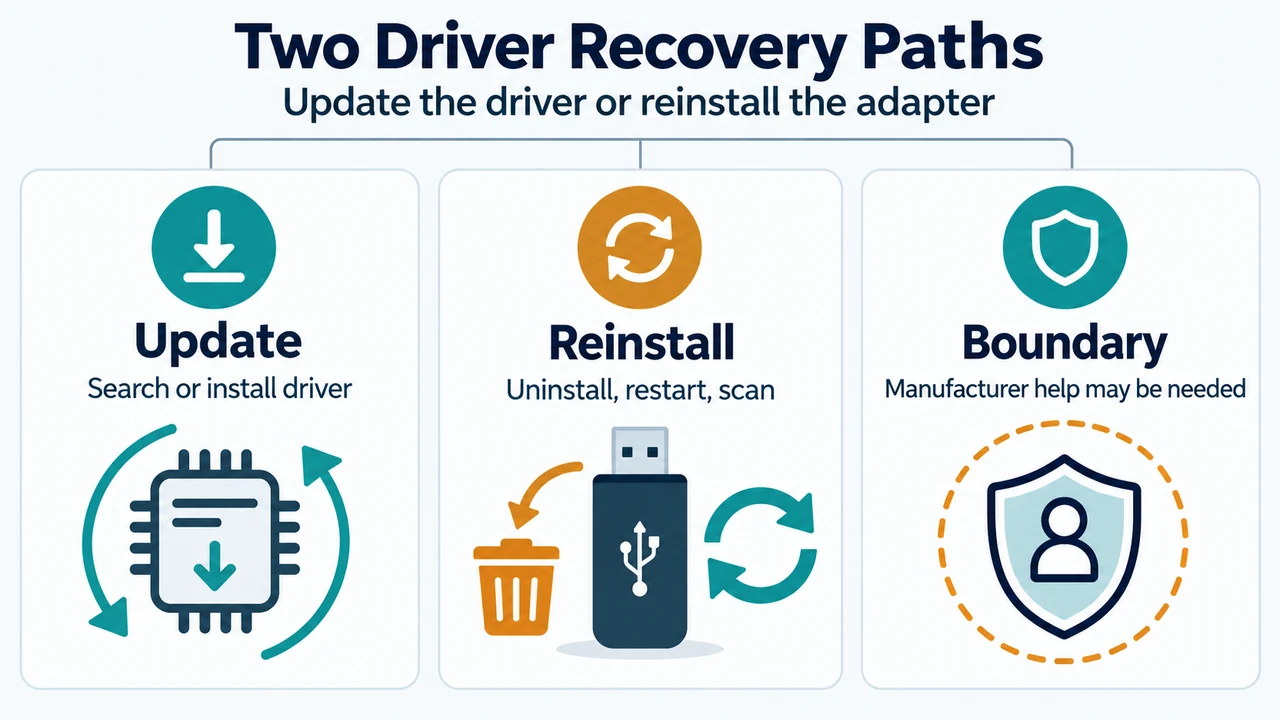
Update the Bluetooth Driver
Outdated or incompatible drivers are identified as common causes of Bluetooth connection problems, especially after upgrading to Windows 11 or installing updates.
Automatic Driver Search
- Select Search on the taskbar, type
Device Manager, and select Device Manager. - Expand Bluetooth and locate the Bluetooth adapter name (which may include the word “radio”).
- Press and hold or right-click the adapter, and select Update driver > Search automatically for updated driver software.
- Follow the steps, then select Close.
- If prompted, select Start > Power > Restart.
Manual Installation from PC Manufacturer
If Windows cannot locate a new driver, download the latest Bluetooth driver from your PC manufacturer’s website:
- Executable file (.exe): Double-click the downloaded
.exefile to run and install the driver. - Driver files (.inf and .sys): In Device Manager, right-click the adapter, select Update driver > Browse my computer for driver software, browse to the folder where the files are stored, select OK, click Next, and close when finished. Restart the PC if prompted via Start > Power > Restart.
Reinstall the Bluetooth Adapter
If connection issues persist:
- In Device Manager, expand Bluetooth.
- Right-click the Bluetooth adapter name and select Uninstall device > Uninstall.
- Select Start > Power > Shut down.
- Wait a few seconds after shutdown, then turn the PC back on. Windows will attempt to reinstall the driver automatically.
- If Windows does not reinstall the driver automatically, open Device Manager and select Action > Scan for hardware changes.
Research Method and Limitations
This troubleshooting guide was compiled entirely from supplied public technical excerpts published by Microsoft covering Windows Bluetooth support. No external testing, physical hardware benchmarks, or hands-on laboratory evaluations were performed. Material limitations include the presence of truncated excerpts in the provided source material and the absence of accessible competing coverage, precluding comparative industry analysis. Documented steps apply to supported Windows 11 systems using recognized Bluetooth hardware; hardware failure or proprietary adapters not recognized by standard Windows utilities may require manufacturer assistance.
Text version of the diagrams
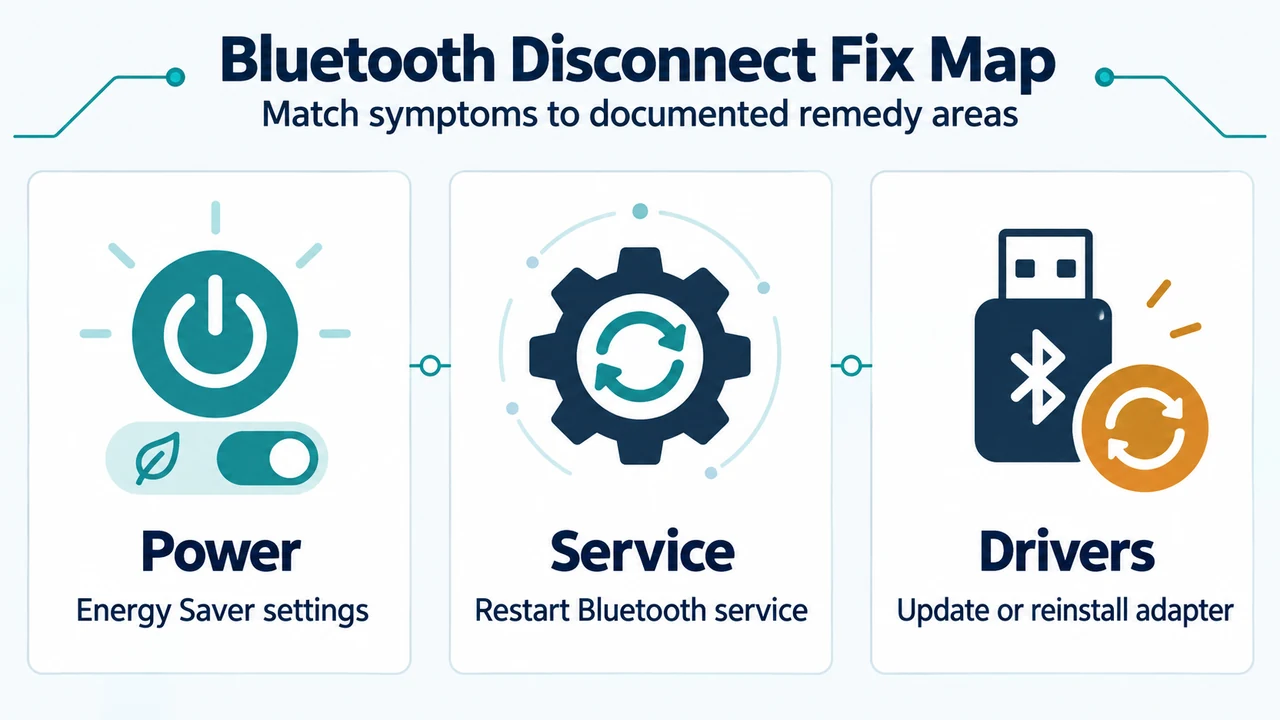
- Bluetooth Disconnect Fix Map: Power — Energy Saver settings; Service — Restart Bluetooth service; Drivers — Update or reinstall adapter
- Two Driver Recovery Paths: Update — Search or install driver; Reinstall — Uninstall, restart, scan; Boundary — Manufacturer help may be needed