When audio does not play through your preferred playback device in Windows 11, you can check output device selection, volume levels, mute states, device properties, and automated diagnostic tools.
Checking Speaker Output and Volume Mixer Controls
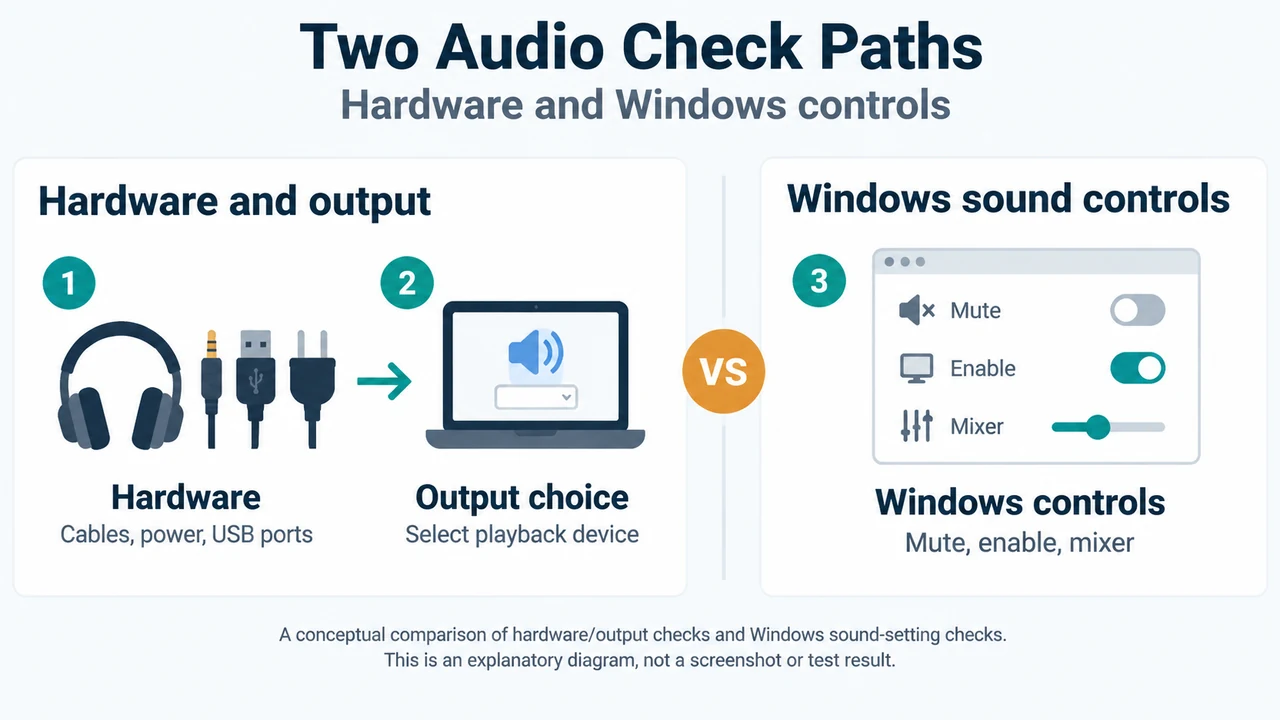
Windows 11 provides access to audio output device selection and Volume mixer settings from the taskbar:
- Select the Speakers icon on the taskbar. If you do not see the icon, select Show hidden icons in the taskbar overflow area.
- Select the arrow to the right of the speaker volume slider. The tooltip displays Select a sound output when hovering over the arrow. Confirm that your preferred device (such as speakers or headphones) is selected.
- To open Volume mixer settings, select the settings icon to the right of the Volume mixer slider. The tooltip displays More mixer settings when hovering over the settings icon. Alternatively, select and hold or right-click the Speakers icon on the taskbar and select Open Volume mixer.
- Review the volume controls for your devices to confirm none are muted. If a control is muted, an “x” (or a red circle with a line through it) appears next to it. To unmute, select the volume control and adjust the volume level, or select the Unmute speakers icon.
Verifying Default Output and Device Properties
If an output device is disabled or misconfigured, Windows cannot route playback through it properly:
- Select Start > Settings > System > Sound.
- In the Output section, select the device you want to use for playback. Selecting this device also sets it as the default output device. If you use an external monitor without built-in speakers, make sure it is not selected as your default output.
- Under Advanced, select More sound settings.
- Select either the Playback (output) or Recording (input) tab, select your device, and select Properties.
- Next to Device usage, verify that Use this device (enable) is selected.
Disabling Audio Enhancements and Running the Audio Troubleshooter
If sound problems persist, check enhancement settings or run the automated troubleshooter:
- To disable enhancements via Control Panel: Type
control panelin the taskbar search box and select it from the results. Go to Hardware and Sound > Sound. On the Playback tab, right-click the default device and select Properties. On the Enhancements tab, select either Disable all enhancements or Disable all sound effects, and select OK. - To run automated diagnostics in Windows 11: Select Start > Settings > System, scroll down to Troubleshoot > Other troubleshooters, and click Run in the Audio section. Alternatively, Windows 11 users can run the automated audio troubleshooter in the Get Help app.
Research Method and Limitations
This troubleshooting guide was prepared strictly from public excerpts of the Microsoft support article “Fix sound or audio problems in Windows.” It is subject to material limitations: the provided excerpt is truncated and does not establish per-app volume sliders, per-app mute states, app-specific output device routing, or master reset buttons in the Volume Mixer. Additionally, no competing coverage was available. As a result, this guide strictly addresses system audio output selection, device mute and volume controls, device enablement properties, audio enhancement toggles, and the Windows audio troubleshooter.
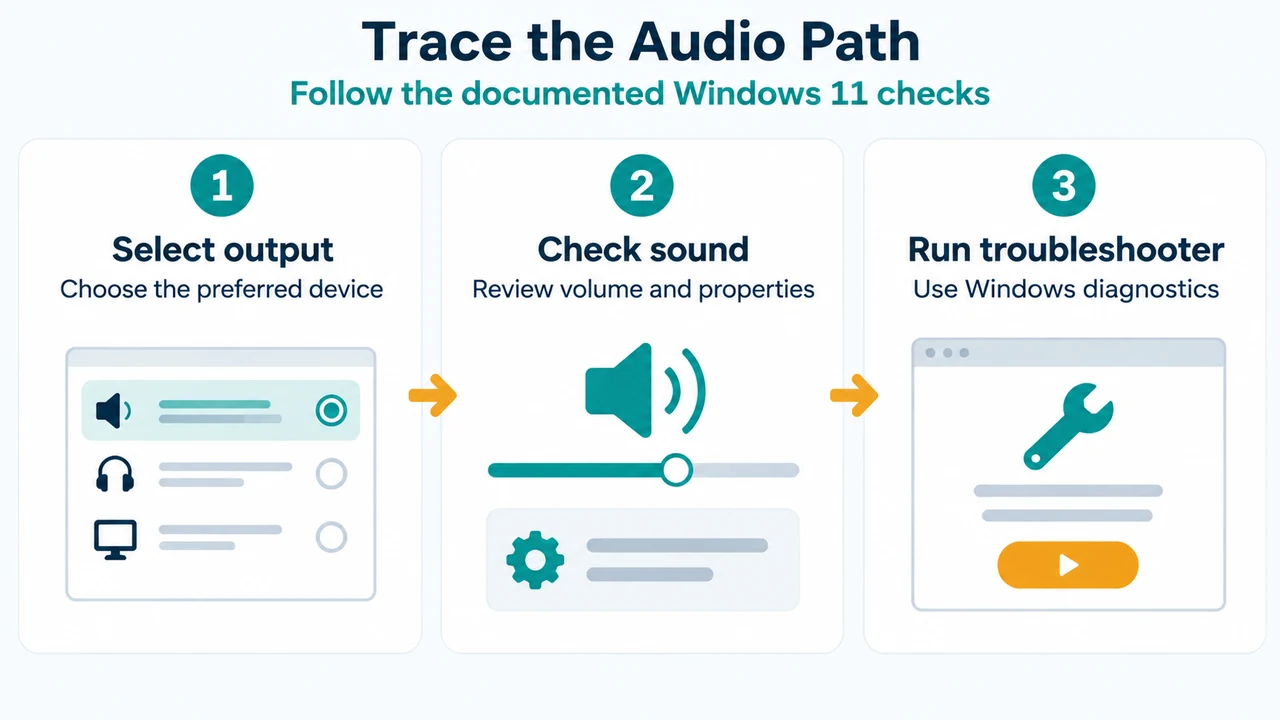
Text version of the diagrams
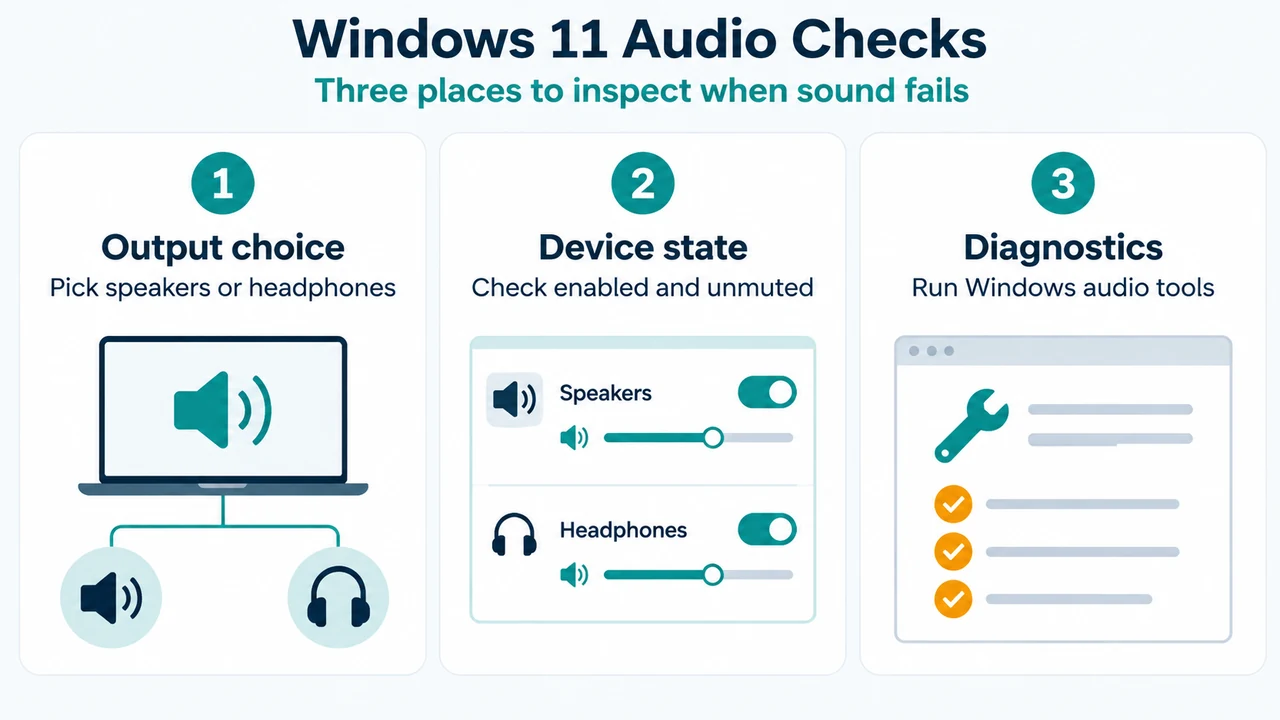
- Windows 11 Audio Checks: Output choice — Pick speakers or headphones; Device state — Check enabled and unmuted; Diagnostics — Run Windows audio tools
- Trace the Audio Path: Select output — Choose the preferred device; Check sound — Review volume and properties; Run troubleshooter — Use Windows diagnostics