Google Pixel phones provide built-in controls to handle notifications as they arrive, adjust alerts for specific apps, and check common settings that suppress incoming alerts.
Managing Alerts as They Arrive
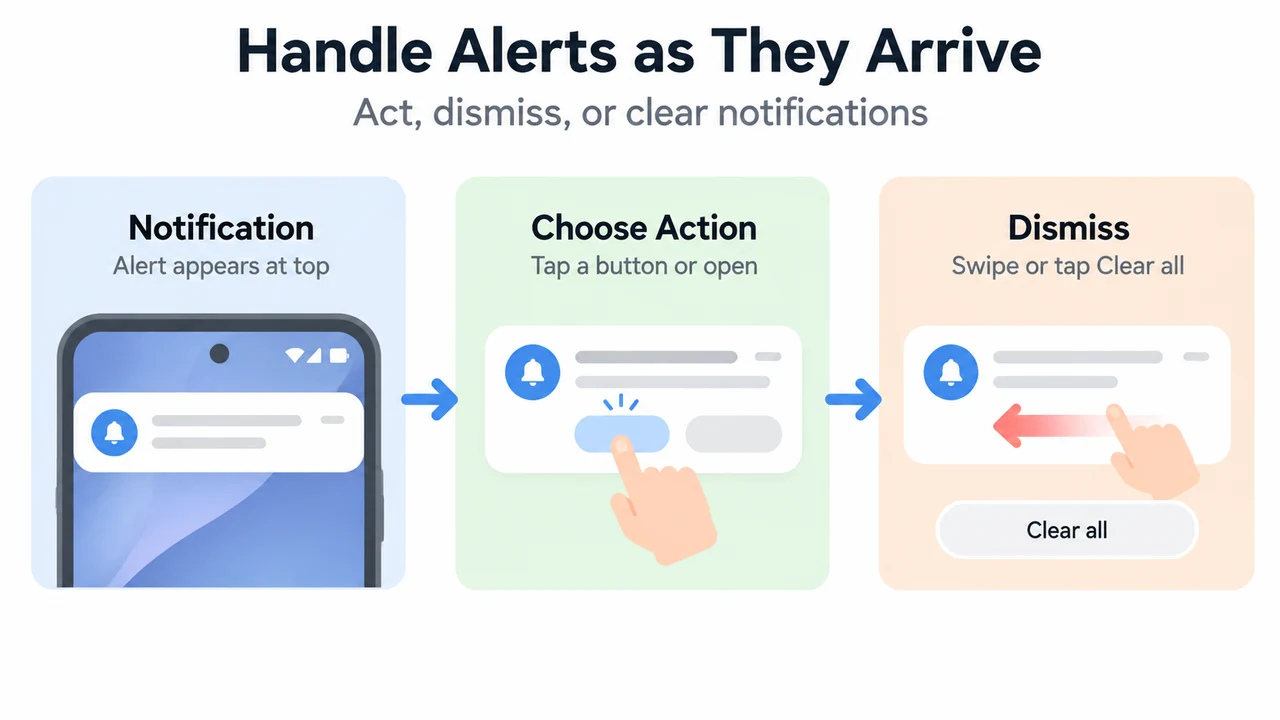
When an alert arrives on a Pixel phone, it appears at the top of the screen. Google documents the following actions:
- Find all notifications: From the top of the screen, swipe down.
- Open a notification: Tap it.
- Take an action: Tap the button on the notification, such as “Reply” or “Archive.”
- Dismiss a single notification: Swipe it left or right.
- Dismiss all notifications: Scroll to the bottom of the list and tap Clear all.
Controlling App Notification Settings
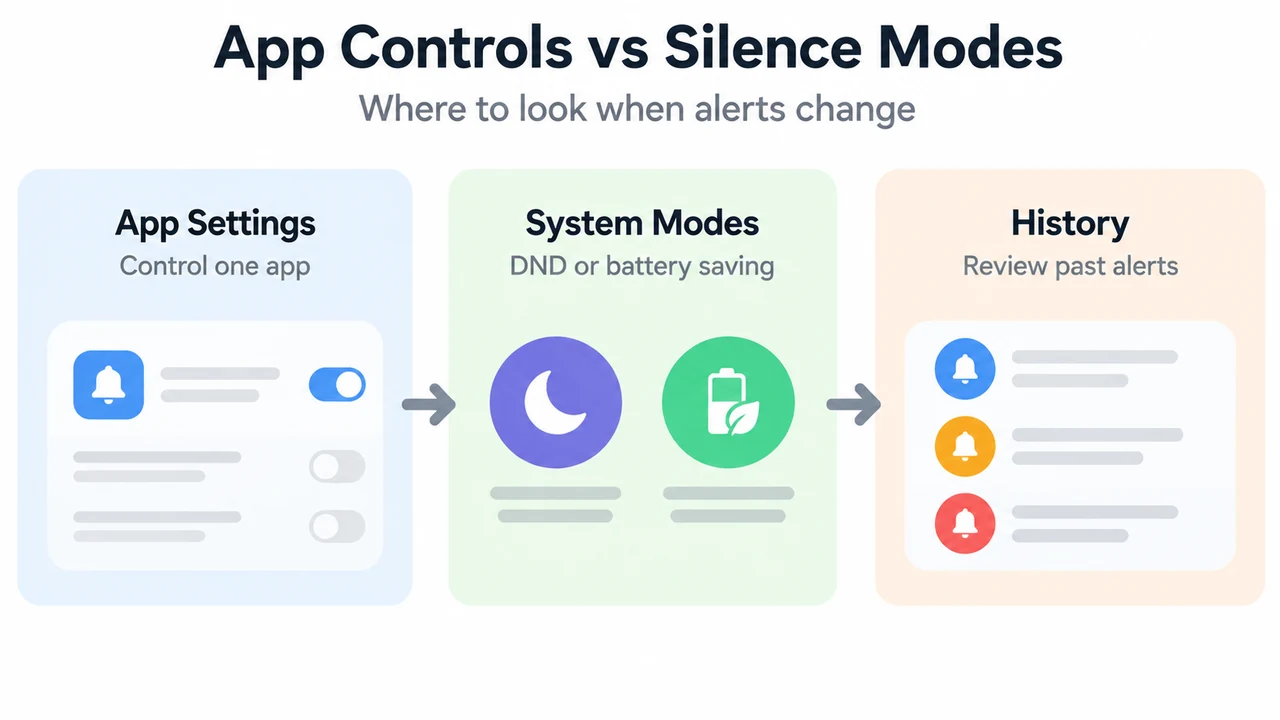
Users can turn notifications on or off for a specific app using two documented paths:
- From a notification: Touch and hold the notification, then turn the app’s notifications on or off.
- From the Settings app: Open the phone’s Settings app, tap Notifications, and then tap App notifications. Users can filter by Most recent, Most frequent, All apps, or Turned off, and toggle notifications on or off.
Settings That Silence or Delay Alerts
If alerts do not arrive, Google notes two settings that can suppress alerts:
- Do Not Disturb: Silences most notifications.
- Battery Saver and Adaptive Battery: Can stop or delay some alerts to save power.
Documented Purpose of Notification History
Google lists a Find & use notification history resource and defines its documented purpose: to find alerts closed by mistake and see a list of past notifications.
Research Method and Limitations
This answer was prepared directly from public Google Pixel Help documentation excerpts. Material limits include the absence of step-by-step navigation, retention windows, or specific interfaces for Notification History in the provided excerpt, as well as the unavailability of competing coverage. Broader system alert settings and advanced notification features referenced in link summaries remain outside the provided evidence.
Text version of the diagrams
- Handle Alerts as They Arrive: Notification — Alert appears at top; Choose Action — Tap a button or open; Dismiss — Swipe or tap Clear all
- App Controls vs Silence Modes: App Settings — Control one app; System Modes — DND or battery saving; History — Review past alerts