During Ubuntu Desktop installation, drive detection and target drive selection depend on system hardware prerequisites, firmware settings, and installer alerts. The official Ubuntu documentation outlines specific conditions under which storage drives and configuration options are recognized or restricted.
Hardware and Storage Space Requirements
According to the Ubuntu Desktop installation tutorial, installing Ubuntu Desktop requires a laptop or PC with at least 25GB of storage space. For preparing the installation boot media, a flash drive of 12GB or above is recommended. Ubuntu advises creating a backup of your files prior to installation.
Boot Menu and Firmware Device Recognition
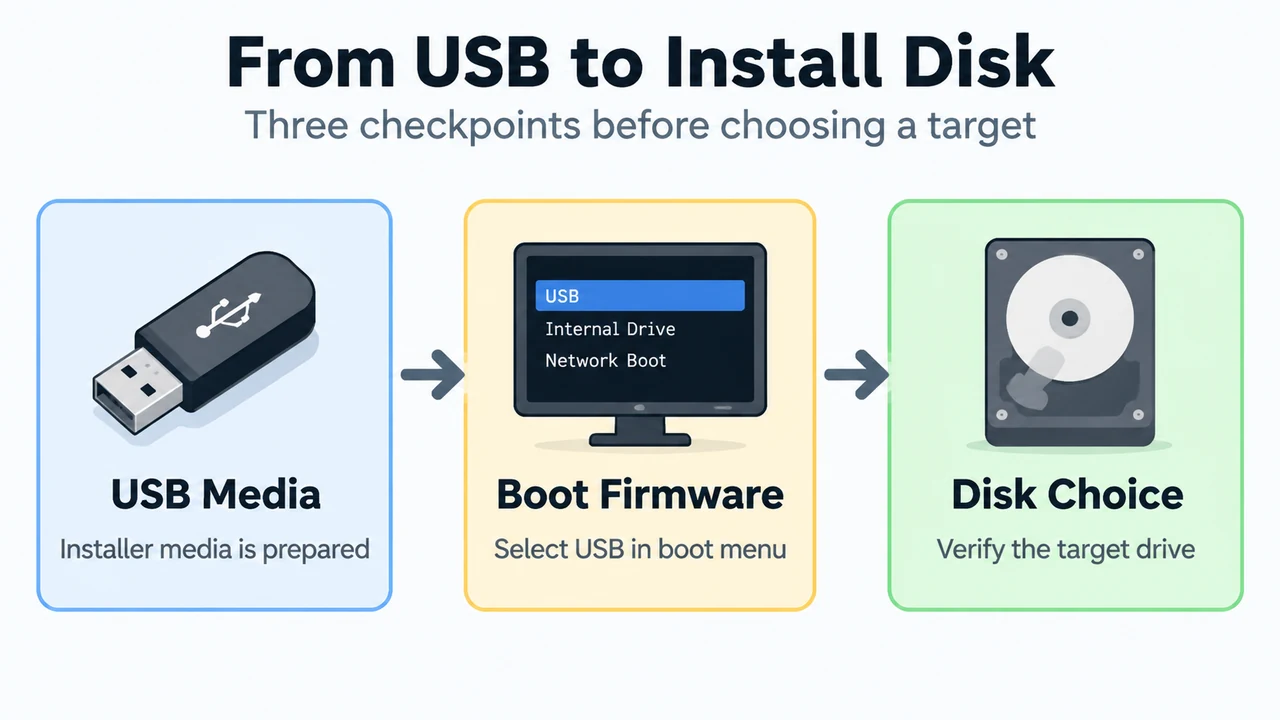
As documented in the Ubuntu Community USB Installation documentation, a computer must be configured to recognize and boot from installation media before reaching the installer:
- Boot Menu Selection: If the computer does not boot automatically from the installer media, holding or tapping function keys during startup opens the device boot menu. Common keys include F12, Escape, F2, F10, or F9 (frequently used on HP Mini Netbooks).
- Firmware Device Naming: In BIOS or UEFI firmware settings, USB devices may be listed under “removable drive”, “USB media”, or classified as mass storage under an entry such as
hard disk/USB-HDD0. Moving the entry to the top of the boot order forces the computer to boot from the external media.
Installer Alerts That Block or Restrict Storage Recognition
The Ubuntu installer checks for specific system and disk technologies that alter or stop the setup process:
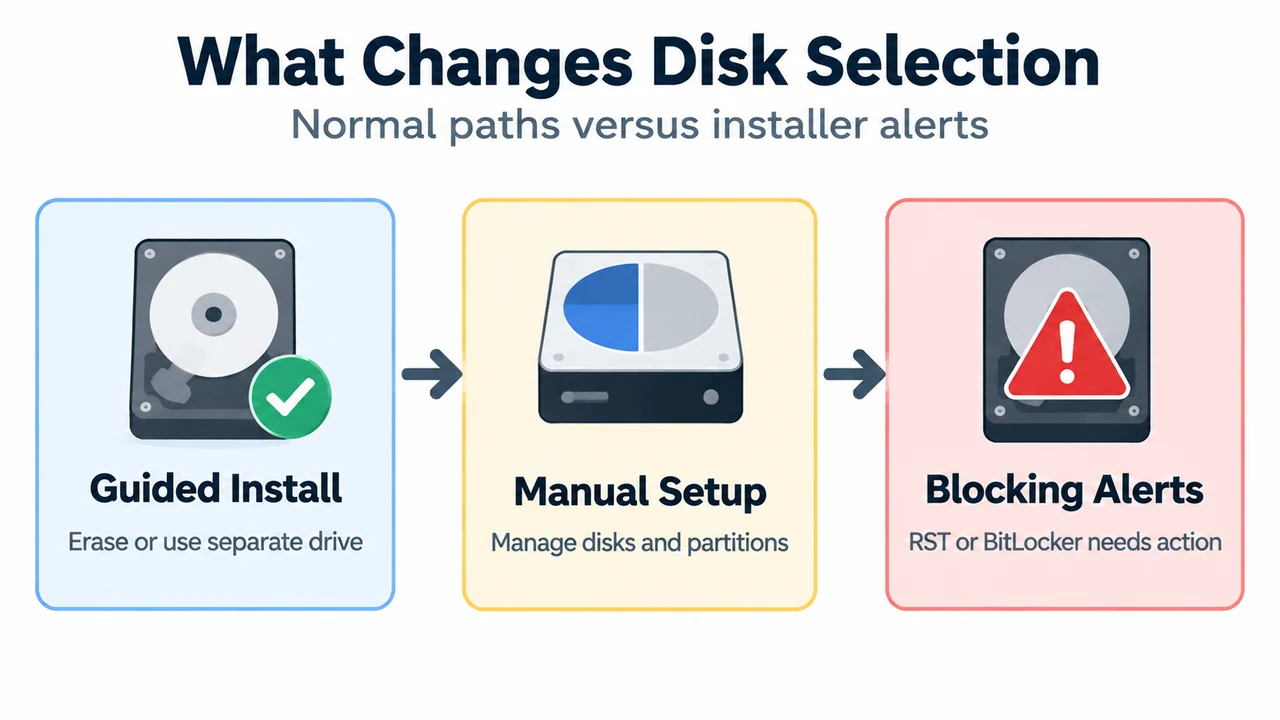
- Intel Rapid Storage Technology (RST): Ubuntu does not support Intel RST. If Intel RST is active on the computer, the installer halts and prevents proceeding past the initial setup screens until RST is disabled in the system BIOS menu.
- Windows BitLocker Drive Encryption: If a drive has Windows BitLocker enabled, the Ubuntu installer cannot gather the drive information required to install Ubuntu safely alongside Windows. In this scenario, the installer prompts you to disable BitLocker in Windows before restarting setup. Disabling BitLocker is not required if you choose to fully erase the disk or if a separate, unencrypted drive is available for Ubuntu.
Drive Selection in Installer Partitioning Views
When selecting where to install Ubuntu, the installer provides distinct interfaces:
- Erase disk and install Ubuntu: Allocates the entire disk space of the chosen drive to Ubuntu. If the computer contains multiple hard drives, this option allows installing Ubuntu alongside another operating system as long as each operating system occupies its own drive. Users must carefully verify that the intended target drive is selected.
- Manual partitioning: Intended for advanced users to view all recognized drives and partitions, enabling custom partition tables and configurations without guided automation.
Text version of the diagrams
- From USB to Install Disk: USB Media — Installer media is prepared; Boot Firmware — Select USB in boot menu; Disk Choice — Verify the target drive
- What Changes Disk Selection: Guided Install — Erase or use separate drive; Manual Setup — Manage disks and partitions; Blocking Alerts — RST or BitLocker needs action
Research Method and Limitations
This reference was prepared directly from public documentation excerpts provided by Canonical and the Ubuntu Community Help Wiki. It does not reflect hands-on testing or hardware diagnostics. Material limitations include truncated documentation passages, an absence of accessible competing coverage, and a lack of documented procedures for diagnosing unlisted USB flash targets, verifying live session mount statuses, or resolving live installer device lockouts.