If Windows 10 or Windows 11 cannot resolve a website name, check the network configuration and then run nslookup. Microsoft documents that nslookup uses the configured DNS server when no second server is supplied and does not use the client DNS cache. This helps examine the configured DNS path directly.
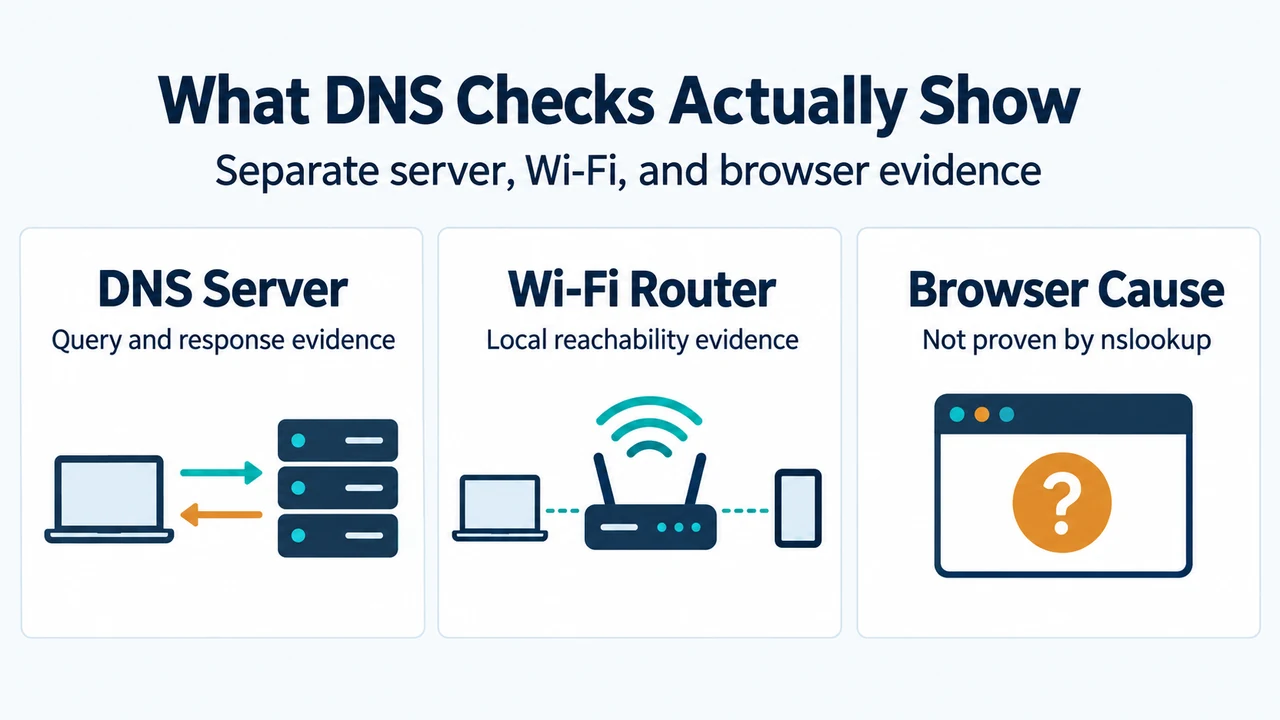
The checks below cover documented Windows DNS and local Wi-Fi checks. They do not establish whether a browser cache, browser extension, or particular website application caused the failure.
What the checks can tell you
ipconfig /alldisplays the client IP address, subnet mask, default gateway, configured DNS servers, and connection-specific DNS suffix.- A ping to a configured DNS server checks whether the client can contact that server by IP address. Microsoft notes that ICMP must be allowed for ping to work.
nslookupqueries the configured DNS server and does not use the client DNS cache.- A ping to the default gateway checks whether the PC can reach its Wi-Fi router. A reply does not prove that Internet access or name resolution works.
1. Check the network configuration
Run:
ipconfig /allCheck the adapter currently in use. Microsoft says to verify the IP address, subnet mask, default gateway, listed DNS server addresses, and connection-specific DNS suffix.
In Windows settings, open Settings > Network & internet, then choose Wi-Fi or Ethernet and select the connected network. Windows supports Automatic (DHCP) and Manual IP settings. With DHCP, the router or another access point supplies the IP and DNS settings. Manual settings let you specify the IP address, gateway, and preferred and alternate DNS addresses.
2. Test the configured DNS server
Note a configured DNS server from ipconfig /all, then run:
ping <DNS-server-address>For example:
ping 10.0.0.1If no configured DNS server responds to a direct ping, Microsoft says the problem is more likely to involve connectivity between the client and DNS server. A failed ping is not conclusive because ICMP must be allowed through the firewall.
3. Run nslookup for the failing name
Run:
nslookup <failing-name>When no second server argument is supplied, Microsoft documents that nslookup uses the default DNS name server. It also documents that the tool does not use the client DNS cache.
Microsoft documents these result meanings:
- timed out: the server did not respond within the configured time and retry count.
- No response from server: no DNS name server is running on the identified server computer.
- Nonexistent domain: the computer or DNS domain name does not exist.
- Connection refused or Network is unreachable: the connection to the DNS name server could not be made.
- Server failure: the DNS server reported an internal database inconsistency and could not return a valid answer.
- Refused: the DNS server refused the request.
These meanings describe the DNS response or the connection to the DNS server. They do not identify every possible browser or website cause.
4. Check the Wi-Fi path
Run:
ipconfigFind the Default Gateway for the connected Wi-Fi network and test it:
ping <DefaultGateway>Microsoft says that a reply indicates a connection to the Wi-Fi router. The problem might then involve the modem or Internet service provider. Ping still depends on ICMP being allowed.
Microsoft also recommends trying the same Wi-Fi network on another laptop or phone. If that device connects, Microsoft says the source is likely related to the original device. This compares devices on the same network; it does not test a separate network.
5. Review proxy and DNS settings
For a PC connected to Wi-Fi but without Internet access, Microsoft says to check Settings > Network & Internet > Proxy and turn off manual proxy settings when they are not intended.
Under the network’s IP settings, review whether IP and DNS addresses are assigned automatically or manually. Microsoft documents DNS over HTTPS settings for Windows 11 and notes that this setting is not available in Windows 10. The supplied excerpts document these settings but do not establish that changing DNS or DNS over HTTPS will fix a particular lookup failure.
What these checks support
| Observed result | Supported next check |
|---|---|
| Invalid IP, gateway, or DNS entries | Review the adapter’s DHCP or manual IP settings. |
| No reply from a configured DNS server | Check client-to-DNS connectivity, while remembering that ICMP may be blocked. |
nslookup returns a documented DNS error |
Use Microsoft’s documented meaning and continue checking the configured DNS path. |
| The default gateway responds, but Internet access remains unavailable | Check the modem or ISP path and the documented proxy and DNS settings. |
| Another device works on the same Wi-Fi | The problem is more likely related to the original device, according to Microsoft. |
Research method and limitations
This answer was prepared from the supplied public Microsoft source excerpts retrieved on September 20, 2026, plus one supplied competitor excerpt used only to compare coverage. The supplied DNS-client troubleshooting excerpt lists Windows Server versions, so its Windows 10/11-specific negative-cache interpretation is not used here. The Wi-Fi excerpt is truncated at supplied boundaries, and no browser-specific diagnosis, second-network test, hands-on testing, benchmark, or comprehensive competing-source review was performed.
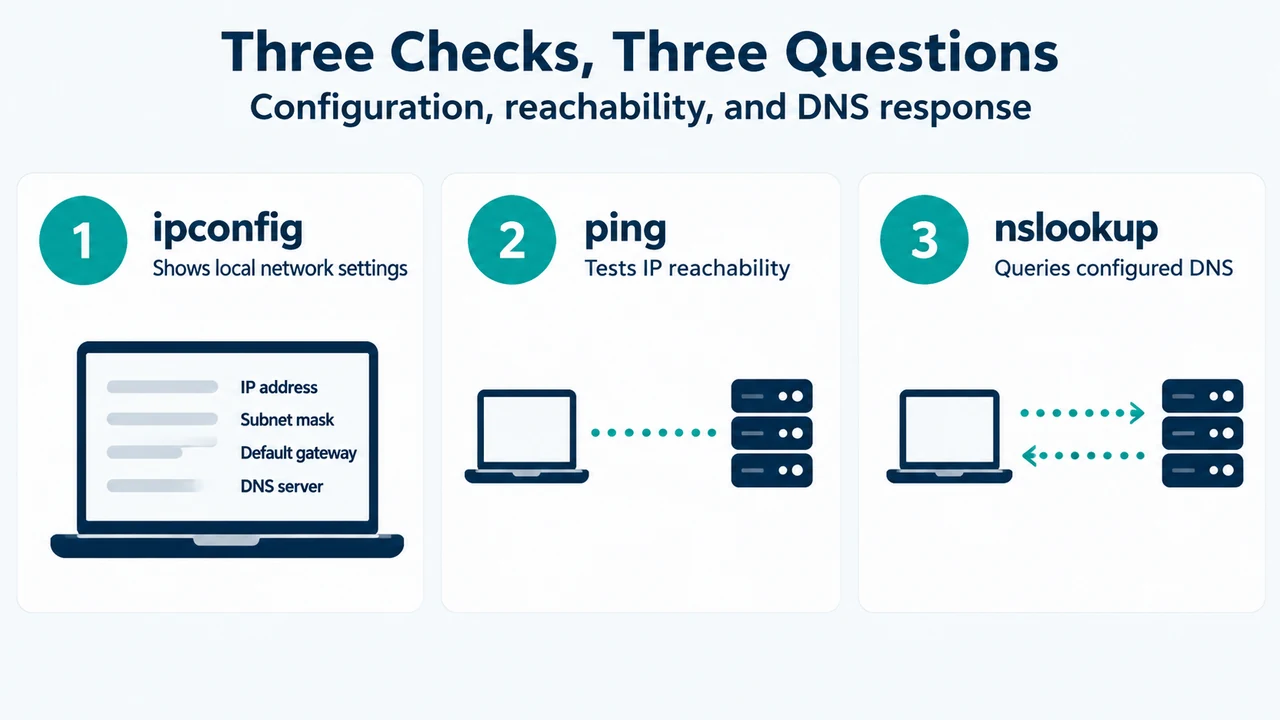
Text version of the diagrams
- What DNS Checks Actually Show: DNS Server — Query and response evidence; Wi-Fi Router — Local reachability evidence; Browser Cause — Not proven by nslookup
- Three Checks, Three Questions: ipconfig — Shows local network settings; ping — Tests IP reachability; nslookup — Queries configured DNS