Diagnosing Blocked Pop-ups in Google Chrome
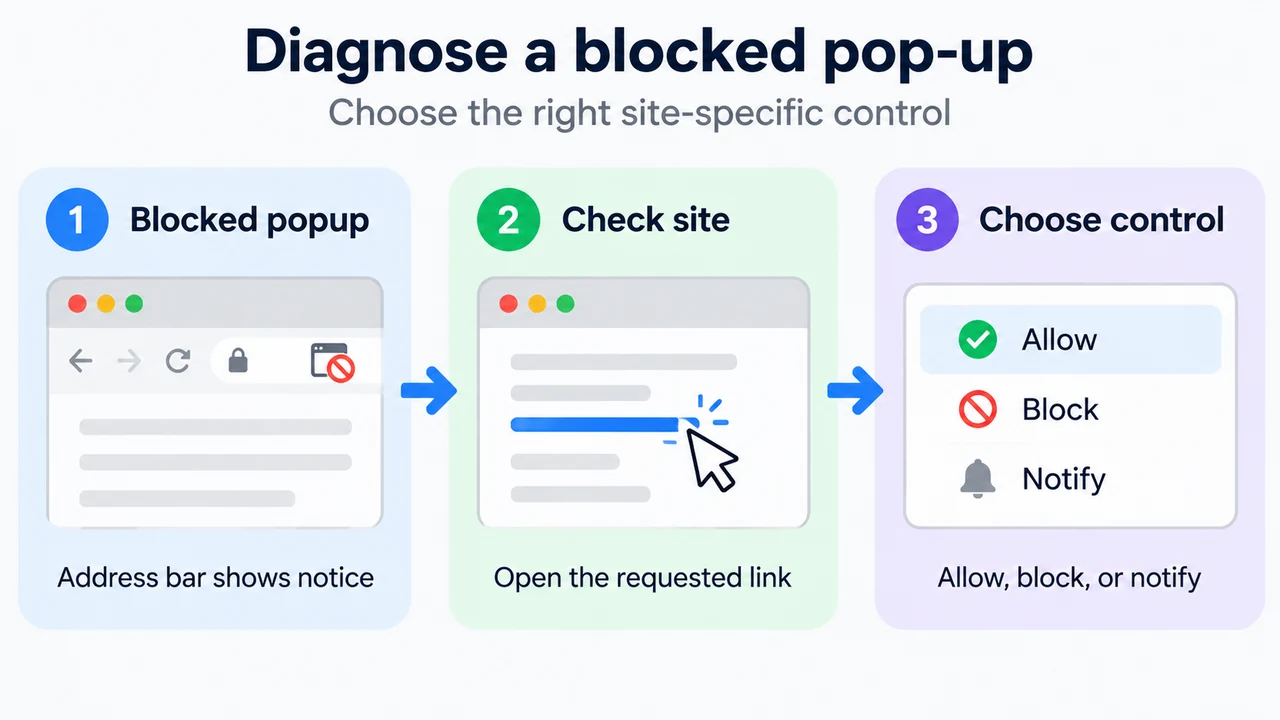
By default, Google Chrome blocks pop-ups from automatically showing up on your screen. When a pop-up is blocked, the address bar is marked Pop-up blocked. Not all pop-ups are ads or spam; some legitimate websites display web content in pop-up windows. You can decide to allow pop-ups for specific sites or manage your settings directly in Chrome.
Allow Pop-ups and Redirects from a Specific Site
If pop-ups are blocked on a page where you need them, you can allow them from the address bar:
- On your computer, open Chrome.
- Go to a page where pop-ups are blocked.
- In the address bar, click Pop-up blocked.
- Click the link for the pop-up you want to check.
- To always allow pop-ups for the site, select Always allow pop-ups and redirects from [site], and then click Done.
Block Pop-ups and Redirects in Settings
To block or manage pop-up permissions for specific sites in Chrome settings:
- On your computer, open Chrome.
- At the top right, click More, then select Settings.
- Click Privacy and security, and then click Site Settings.
- Click Pop-ups and redirects.
- Under “Allowed to send pop-ups and use redirects,” find the site.
- To the right of the site, click More, and then select Block.
- If the site is not listed, next to “Not allowed to send pop-ups or use redirects,” click Add. Enter the site’s web address, and then click Add. To capture all pop-ups across the site, use the pattern
[*.]example.com.
Managing Notifications
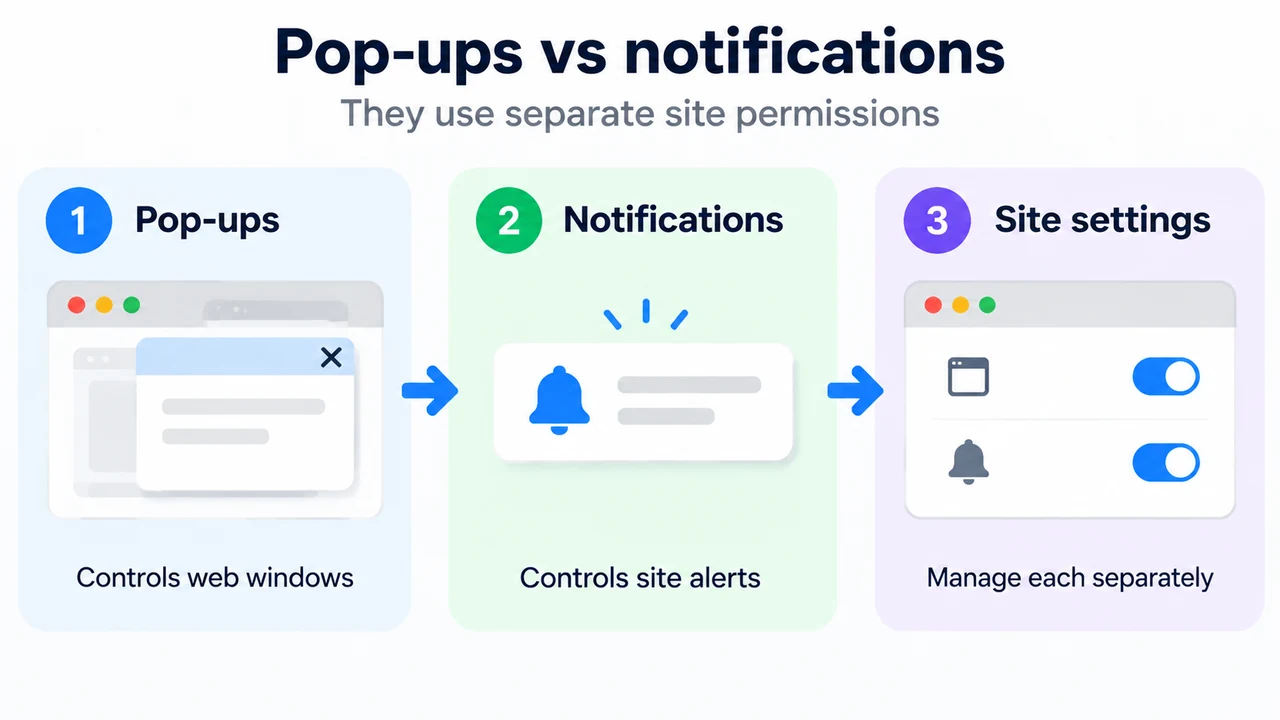
If you still get communications from a site after disabling pop-ups, you may have subscribed to notifications. To turn off notifications for a site:
- On your computer, open Chrome.
- Go to the site you get notifications from.
- Click View site information.
- Next to “Notifications,” select Block from the drop-down menu. You can also block notifications from your site settings.
To prevent notification overload, Chrome may remove notification permissions from sites you haven’t visited in a while. When permissions are removed, an alert appears. To review or change these permissions:
- On your computer, open Chrome.
- At the top right, select More, then select Settings (or select Removed permissions from [n] unused sites).
- On the left, select Privacy and security.
- Under “Safety Check,” select Go to Safety Check.
- Under “Safety recommendations,” find Permissions removed for [n] sites. You can also go directly to a site to re-grant notification permissions.
Managed Devices and Site Owner Inquiries
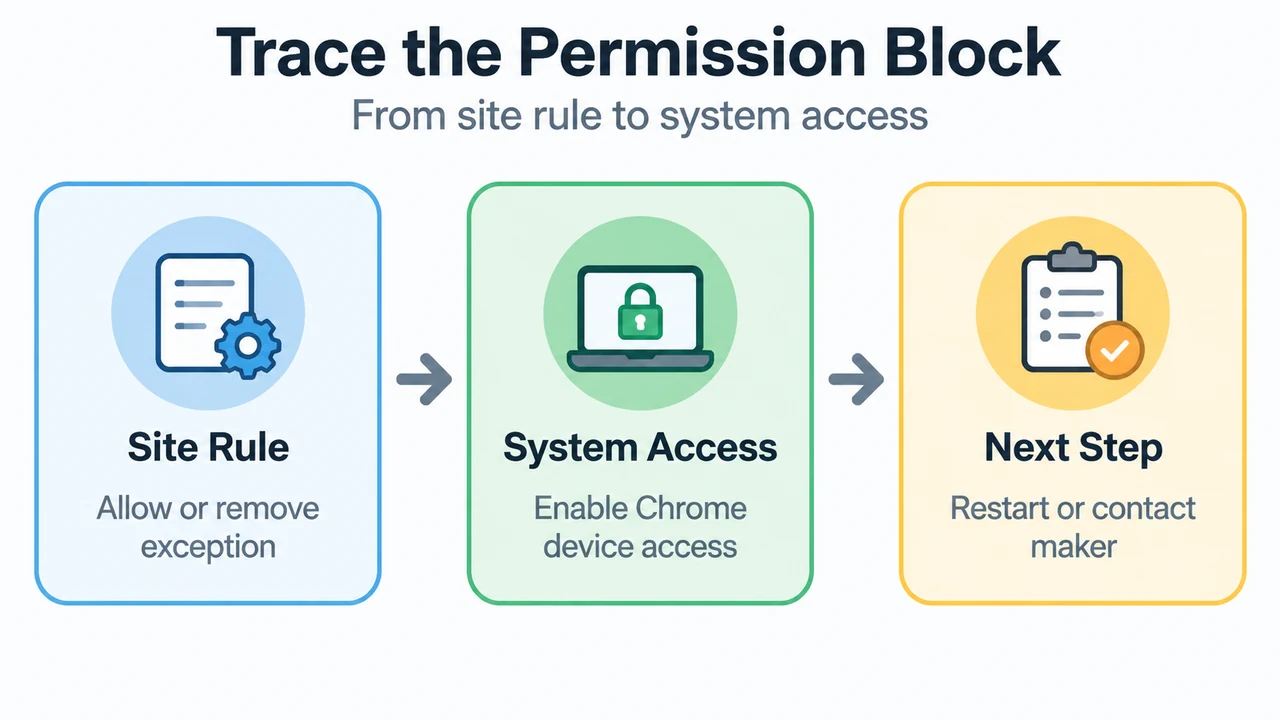
If you use a Chrome device at work or school, you cannot change this setting yourself, but your network administrator can set up the pop-up blocker for you.
If you own a site and your pop-ups are being blocked, Chrome blocks pop-ups that users might not find useful. You can check the Abusive Experience Report to learn if there are any issues found with your site that you can address.
Text version of the diagrams
- Diagnose a blocked pop-up: Blocked popup — Address bar shows notice; Check site — Open the requested link; Choose control — Allow, block, or notify
- Pop-ups vs notifications: Pop-ups — Controls web windows; Notifications — Controls site alerts; Site settings — Manage each separately