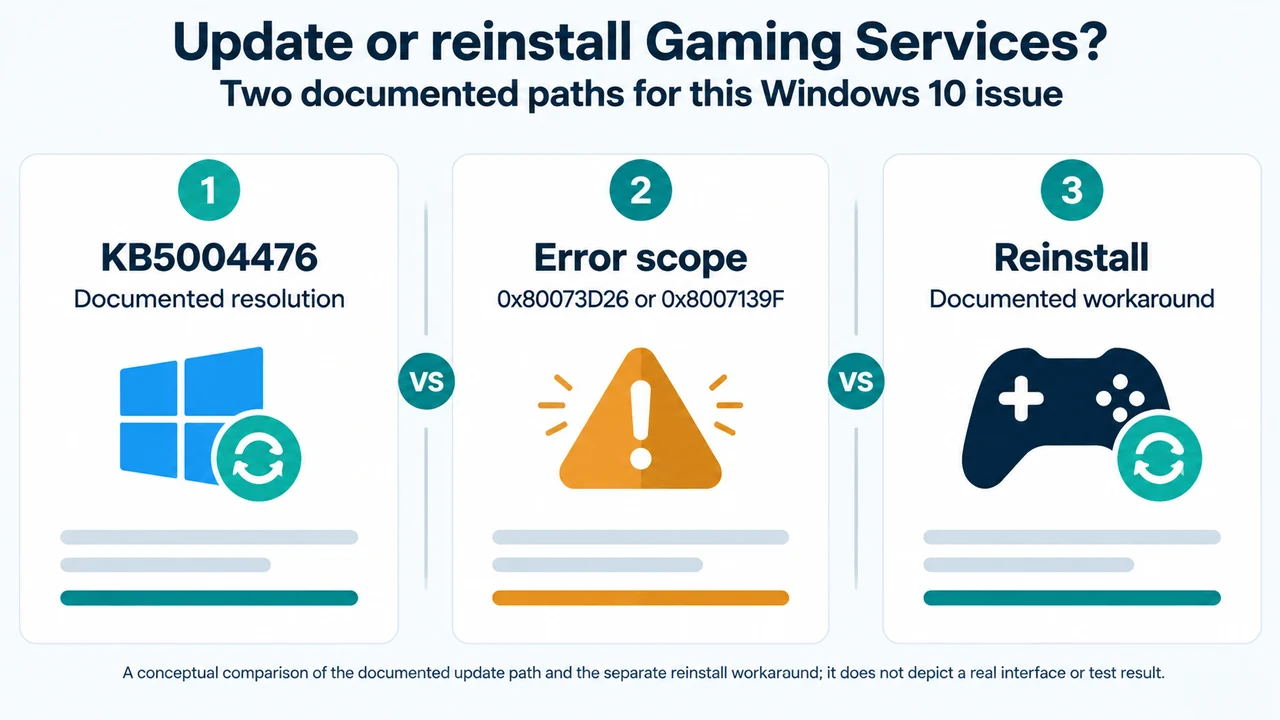
If Xbox Game Pass redirects you to the Microsoft Store for Gaming Services and shows error 0x80073D26 or 0x8007139F, the Microsoft support article identifies a Windows 10 issue. Its documented resolution is the June 11, 2021 out-of-band update KB5004476 for OS Builds 19041.1055, 19042.1055, and 19043.1055. Microsoft also documents a Gaming Services removal-and-reinstall workaround.
This guide covers the Windows 10 symptom and steps described in the supplied Microsoft excerpts. It does not claim that they apply to every Xbox app problem or Windows version.
Check the documented Windows 10 symptom
When you try to install or start an Xbox Game Pass game on a Windows 10 device, you may be redirected to the Microsoft Store page for Gaming Services and receive error 0x80073D26 or 0x8007139F.
Microsoft’s article names OS Builds 19041.1055, 19042.1055, and 19043.1055 for the KB5004476 resolution.
Optional Windows app check
Microsoft’s app-repair guidance says that some apps can be repaired from Windows Settings. It does not establish that Repair or Reset will appear for Gaming Services or the Xbox app.
- On Windows 10, select Start > Settings > Apps > Apps & features.
- Select the app you want to fix.
- Select Advanced options, if available.
- Select Repair, if available.
- If Repair is unavailable or does not fix the problem, select Reset.
Microsoft says that repair, change, or modify options are not available for every app or program. Treat this as an optional check, not a guaranteed Gaming Services fix or a required step in the reinstall workaround.
Microsoft’s Gaming Services reinstall workaround
Microsoft’s workaround removes Gaming Services packages for all users and deletes the GamingServices and GamingServicesNet service-key trees. It requires administrator approval and changes the Gaming Services installation. The supplied evidence does not support calling this process safe or provide a rollback procedure. Review the commands before running them and do not modify unrelated entries.
1. Create and run the script
Open Notepad and paste these commands from Microsoft’s workaround:
Get-AppxPackage *gamingservices* -allusers | remove-appxpackage -allusers
Remove-Item -Path "HKLM:\System\CurrentControlSet\Services\GamingServices" -recurse
Remove-Item -Path "HKLM:\System\CurrentControlSet\Services\GamingServicesNet" -recurse
Select File > Save As. Enter RepairGamingServices.ps1 as the file name and set Save as type to All Files (*.*). Right-click the saved PowerShell script and select Run as administrator.
2. Restart the device
After running the script as administrator, restart the device. The restart is part of Microsoft’s documented workaround.
3. Reinstall Gaming Services from Xbox
After the restart, start the Xbox application. Microsoft says a blue banner should appear with a message that the app needs an extra component and that Gaming Services is needed for playing some games. Select Install to reinstall Gaming Services.
Microsoft says that after installation, you should be able to install and start games. This is the expected result described in the workaround, not a guarantee for every Windows 10 installation or Xbox app problem.
Evidence limits
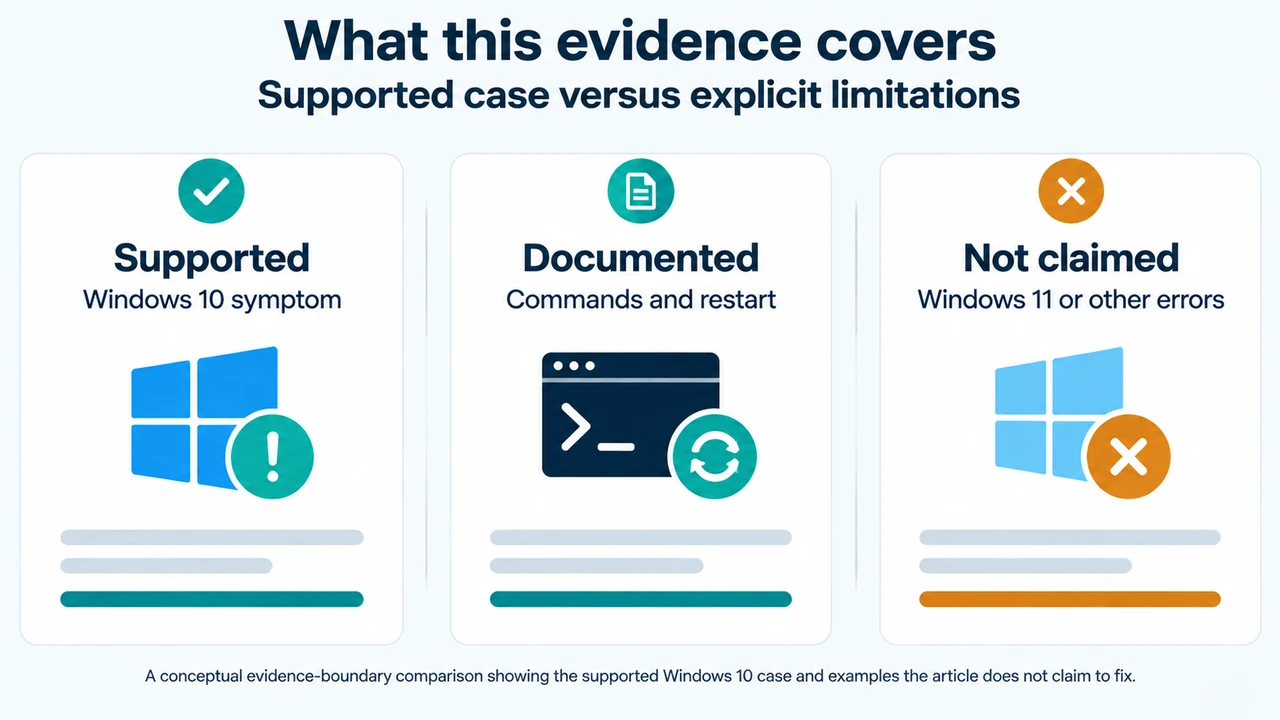
The supplied Microsoft excerpts support the Windows 10 symptom, both error codes, KB5004476 and its named builds, the PowerShell commands, administrator execution, restart, Xbox installation prompt, and expected result. They also support the Windows 10 Settings Repair-then-Reset path while noting that the options may be unavailable.
The excerpts do not establish a universal fix for other Xbox installation errors, Windows 11 behavior, unrelated Microsoft Store failures, or problems that remain after Gaming Services is reinstalled. The supplied Bethesda excerpt mentions a separate beta Gaming Services Repair Tool, but it does not provide the Microsoft workaround’s exact scope or command sequence and is not used here as technical authority.
Research method and limitations
This answer was prepared from the supplied public source excerpts retrieved on September 20, 2026. The excerpts were treated as scope-limited evidence, and no unseen text was inferred. The material does not include hands-on testing or benchmark evidence. Competing coverage was limited to the supplied Bethesda excerpt, so broader coverage may be unavailable. Windows support status and app options may change outside the documented excerpts.
Text version of the diagrams
- Update or reinstall Gaming Services?: KB5004476 — Documented resolution; Error scope — 0x80073D26 or 0x8007139F; Reinstall — Documented workaround
- What this evidence covers: Supported — Windows 10 symptom; Documented — Commands and restart; Not claimed — Windows 11 or other errors