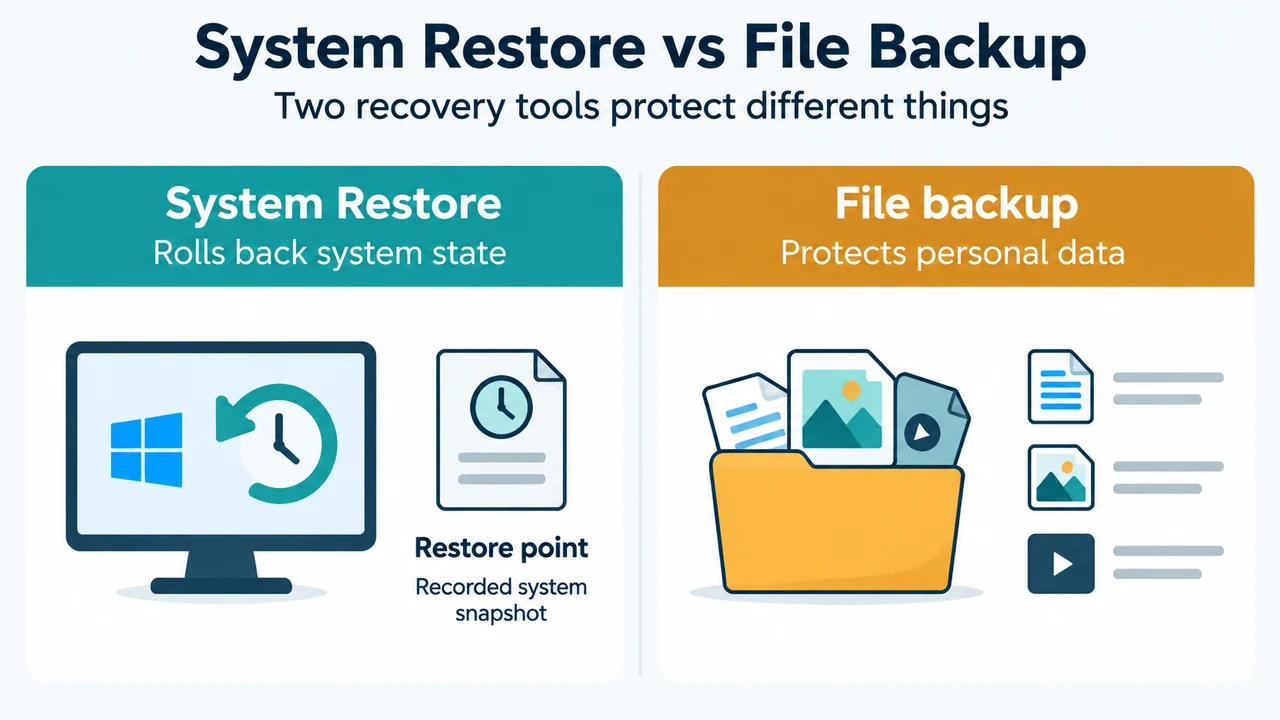
If System Restore shows no restore points in Windows 10 or Windows 11, check whether System Protection is enabled. Microsoft says System Protection is not enabled by default. Without an available restore point, System Restore has no earlier system state to apply.
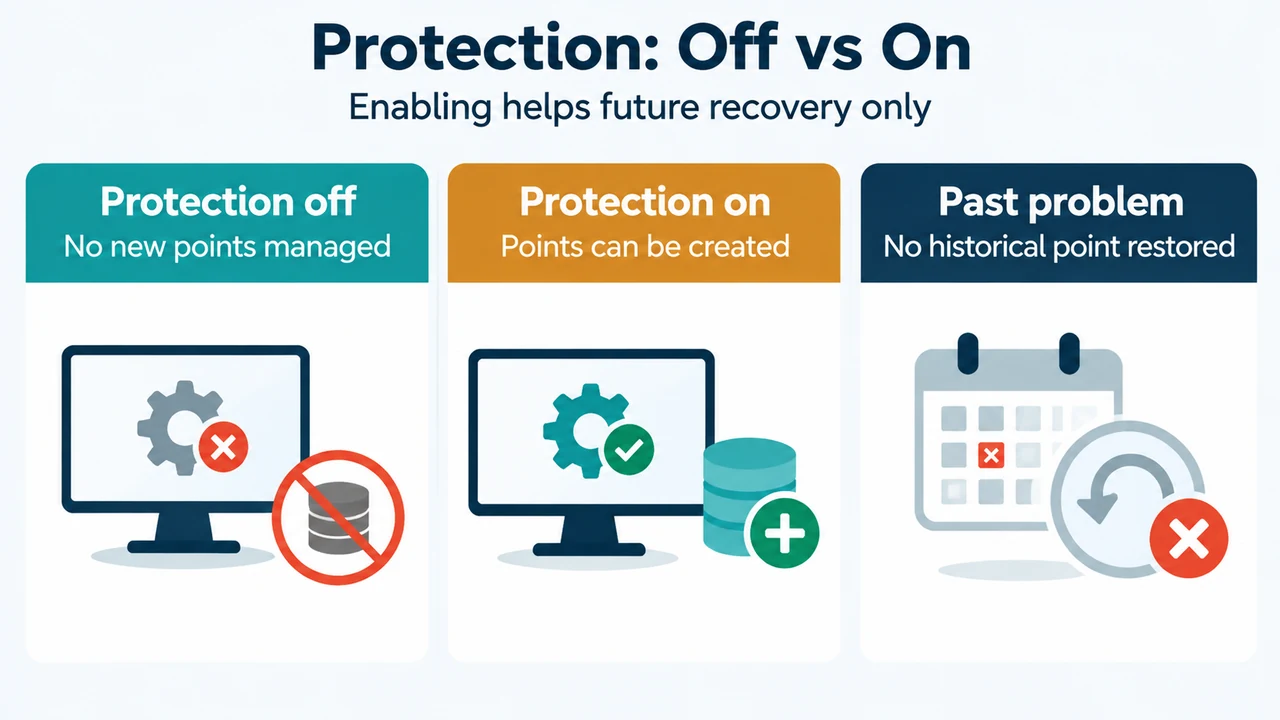
This guide covers the documented System Protection and System Restore features in Windows 10 and Windows 11. It does not claim that enabling the feature can recreate a restore point from before a problem began.
What “no restore points” means
A restore point is a snapshot of system configuration and settings at a particular time. Microsoft describes System Restore as a way to return system files, Registry settings, and installed programs to the state recorded in a selected restore point.
System Restore is intended for system changes such as software installations, driver updates, or settings modifications. Microsoft also states that System Restore does not affect personal files. It is therefore a system-recovery feature, not a replacement for backing up documents, email, browsing history, favorites, or other personal data.
Check System Protection in Windows 10 or 11
- Open Start and search for Create a restore point.
- Select Create a restore point from the results.
- In the System Properties window, open the System Protection tab.
- Select Configure.
- If System Protection is off, select Turn on system protection.
- Use the disk-space slider to set the maximum space System Protection may use, then select Apply.
These are the configuration steps Microsoft documents for Windows 10 and Windows 11. The Microsoft page does not establish that every missing-restore-point case has the same cause, and turning the feature on cannot create a historical point that was never available.
Create a restore point for future recovery
After configuring System Protection, create a point manually so a point is available for a later system rollback:
- In the same System Properties window, on the System Protection tab, select Create.
- Enter a description for the restore point.
- Select Create.
Microsoft also says that Windows can create restore points automatically when needed, and that users can create them manually. The supplied documentation does not promise a particular creation schedule for current Windows 10 or Windows 11 systems, so do not treat automatic creation as guaranteed for every situation.
How to use a restore point when one exists
From Windows, open System Restore by either selecting Recovery in Control Panel and choosing Open System Restore, or pressing Windows key + R, entering rstrui.exe, and pressing Enter.
In the restore window, select Next and choose an available restore point. Microsoft provides a Show more restore points option and an optional Scan for affected programs check. After you choose a point and select Finish, Windows restarts automatically.
If the computer is encrypted and you use System Restore from Windows Recovery Environment, Microsoft notes that you need the BitLocker recovery key to complete the task. In Windows Recovery Environment, the documented path is Troubleshoot, Advanced options, and System Restore.
What this check can and cannot solve
| Question | Supported answer |
|---|---|
| Can System Restore undo a recent system change? | It can return system files, Registry settings, and installed programs to the state recorded in a selected restore point. |
| Does it restore personal files? | No. Microsoft says System Restore does not restore user data or documents. |
| Can enabling System Protection recover an older missing point? | The supplied Microsoft excerpts do not say that it can. Enabling the feature prepares Windows to create or manage points going forward. |
| Is a restore point the same as a personal-file backup? | No. The documented purposes are different: System Restore rolls back system state, while personal files need their own backup method. |
Research method and limitations
This research-based guide was prepared from the supplied public Microsoft excerpts retrieved on September 19, 2026: Microsoft Support pages for System Restore and System Protection, plus a Microsoft Learn page about System Restore. The Learn excerpt identifies an older page last updated in 2019 and includes historical Windows-version details; this article does not use those historical schedules as current Windows 10/11 rules. A supplied competitor page was reviewed for coverage comparison, but it was truncated and was not used as technical authority. No hands-on test, lab test, benchmark, or comprehensive review was performed.
Text version of the diagrams
- System Restore vs File Backup: System Restore — Rolls back system state; Restore point — Recorded system snapshot; File backup — Protects personal data
- Protection: Off vs On: Protection off — No new points managed; Protection on — Points can be created; Past problem — No historical point restored