On a supported Windows 11 setup, a Bluetooth LE Audio headset can use stereo playback while its microphone is active. Microsoft documents this for Windows 11 version 24H2 or newer, build 26100.4484 or newer, with factory-integrated Bluetooth LE support, compatible manufacturer drivers, and a Bluetooth LE Audio headset, earbuds, speaker, or supported hearing device.
If playback disappears or becomes disruptive when the microphone starts, Microsoft recommends changing the microphone-active format from Stereo (2 channels) to Mono (1 channel). This is a reversible compatibility fallback. It does not prove that every Bluetooth headset or Windows PC supports stereo microphone use.
Why the microphone can change Bluetooth audio
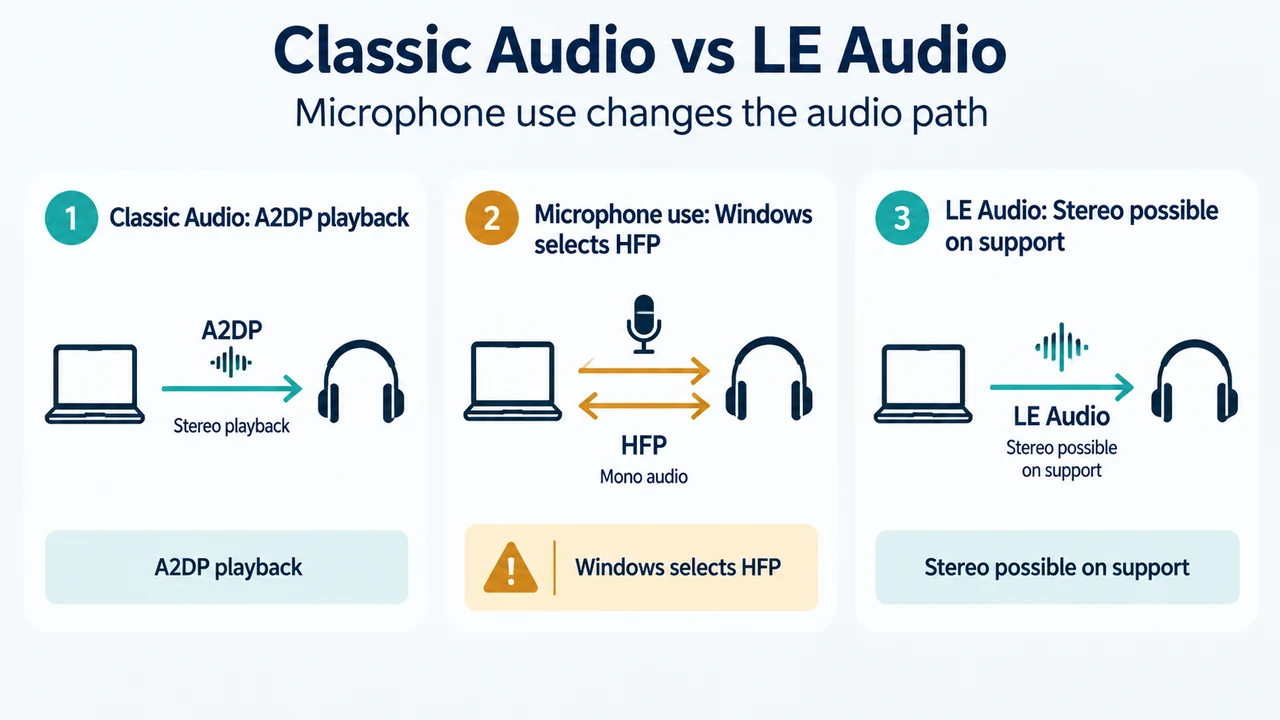
Windows’ Bluetooth Classic Audio documentation separates stereo playback and microphone operation. A2DP provides stereo playback. HFP provides microphone capture together with mono playback. On Windows 11, Windows selects HFP when an application opens the headset’s microphone or creates a communications playback stream. Otherwise, playback uses A2DP.
That Classic Bluetooth behavior is different from LE Audio. Microsoft’s LE Audio documentation describes LE Audio as a separate technology that uses Bluetooth Low Energy. On compatible Windows 11 24H2 systems, it can provide stereo playback while the microphone is active. The option is not available on every Windows 11 PC or headset.
First check whether Windows supports LE Audio
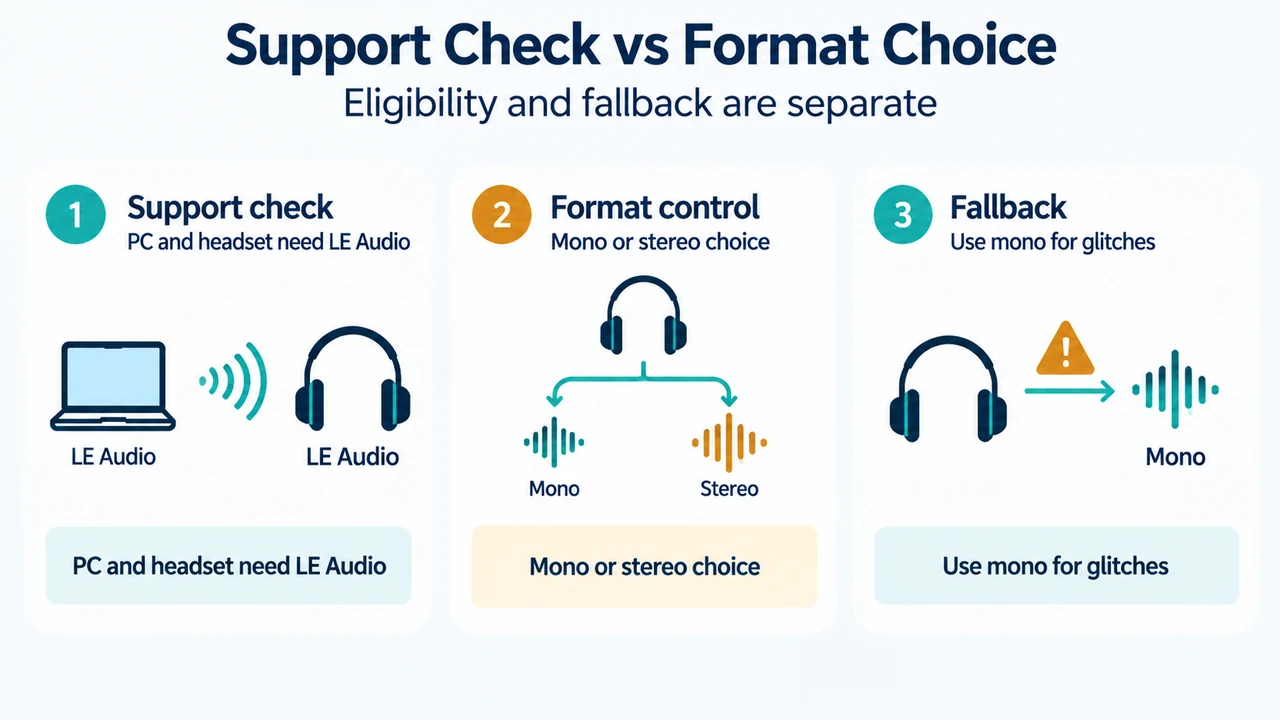
Windows must support LE Audio on both sides: the PC and the headset. Microsoft says the PC needs Windows 11 version 22H2 or newer, compatible Bluetooth LE hardware, a compatible audio codec, and manufacturer drivers for the Bluetooth LE radio and audio codec. The headset or earbuds must also support Bluetooth LE Audio; Microsoft’s guidance suggests checking the manufacturer’s specifications for Bluetooth LE Audio or the TMAP profile.
- Open Settings.
- Go to Bluetooth & devices > Devices.
- Under Device settings, look for Use LE Audio when available.
If that setting is missing, Microsoft says the Windows device does not currently support LE Audio. The cause may be a hardware limitation or missing or incompatible drivers. Some devices may gain support through future manufacturer driver updates. The setting is therefore a support check, not a guarantee that stereo microphone playback will work with every accessory.
Check the microphone-active format
For the stereo feature specifically, Microsoft lists a narrower scope: Windows 11 version 24H2 or newer, build 26100.4484 or newer, factory-integrated Bluetooth LE support, the necessary manufacturer drivers, and a compatible Bluetooth LE Audio device.
Pair and connect the Bluetooth LE Audio device, then:
- Open Settings > System > Sound.
- Under Output, select the arrow next to the connected Bluetooth LE Audio device.
- Expand Output settings and then Format.
- Find Format when microphone is active.
Microsoft documents two choices there: Mono (1 channel) and Stereo (2 channels). On a compatible system, the setting defaults to stereo. If the control is not present, Microsoft says the system does not support stereo audio while the microphone is active and recommends checking for current operating-system and driver updates or contacting the PC manufacturer.
Use mono when stereo causes cutouts or glitches
If audio is lost or becomes disruptive when the headset microphone is used, return to Format when microphone is active and select Mono (1 channel). Microsoft specifically recommends this change for Bluetooth accessories that have trouble rendering stereo audio while the microphone is active.
This changes the documented format choice; it does not add LE Audio support, change the headset’s hardware, or establish that a pairing problem has been fixed. If the option is unavailable, the supplied Microsoft guidance does not provide a supported setting change that adds it.
Do not confuse this symptom with a pairing failure
The supplied documentation describes profile and format changes after a connected device’s microphone is opened. It does not establish a universal fix for devices that cannot pair, connect, or remain connected. This article is limited to playback loss or disruptive glitches that occur when the microphone becomes active on the Windows 11 Bluetooth audio setup described above.
System-wide mono audio is a separate setting
Microsoft also documents a system-wide mono audio toggle at Settings > Accessibility > Audio. When it is enabled, Windows displays a warning that stereo audio may not function correctly. If stereo audio is desired, Microsoft says to disable that system-wide mono audio toggle. This is separate from selecting Mono (1 channel) under Format when microphone is active.
Text version of the diagrams
- Classic Audio vs LE Audio: Classic Audio — A2DP playback; HFP mono; Microphone use — Windows selects HFP; LE Audio — Stereo possible on support
- Support Check vs Format Choice: Support check — PC and headset need LE Audio; Format control — Mono or stereo choice; Fallback — Use mono for glitches
Research method and limitations
This article was prepared from the supplied public Microsoft excerpts, including Microsoft’s Windows 11 LE Audio settings guide, LE Audio support-check guide, and Bluetooth Classic Audio documentation. The excerpts establish the stated Windows versions, requirements, settings paths, profile roles, and mono fallback. They do not establish behavior for every headset, Bluetooth adapter, application, codec, or driver combination. No hands-on testing, lab measurement, benchmark, or comprehensive headset review was performed. The supplied competitor excerpts were used only to compare coverage, not as authority for technical claims.