Excel shows #SPILL! when a formula returns multiple results but Excel cannot place those results into the worksheet. In the most common case, select the error cell, inspect the dashed border showing the intended spill range, and use the error-checking alert’s Select Obstructing Cells option. You can then clear or move the obstructing entry if it is safe to do so.
This guidance applies to the Microsoft-documented scope of Excel for Microsoft 365, Microsoft 365 for Mac, Excel 2024, Excel 2024 for Mac, Excel 2021, Excel 2021 for Mac, Excel 2019, Excel 2016, Excel for iPad, Excel for iPhone, Excel for Android tablets, Excel for Android phones and the Excel Web App. The behavior described is for dynamic-array formulas; legacy fixed-size array formulas do not use this spilling behavior.
Start with the intended spill range
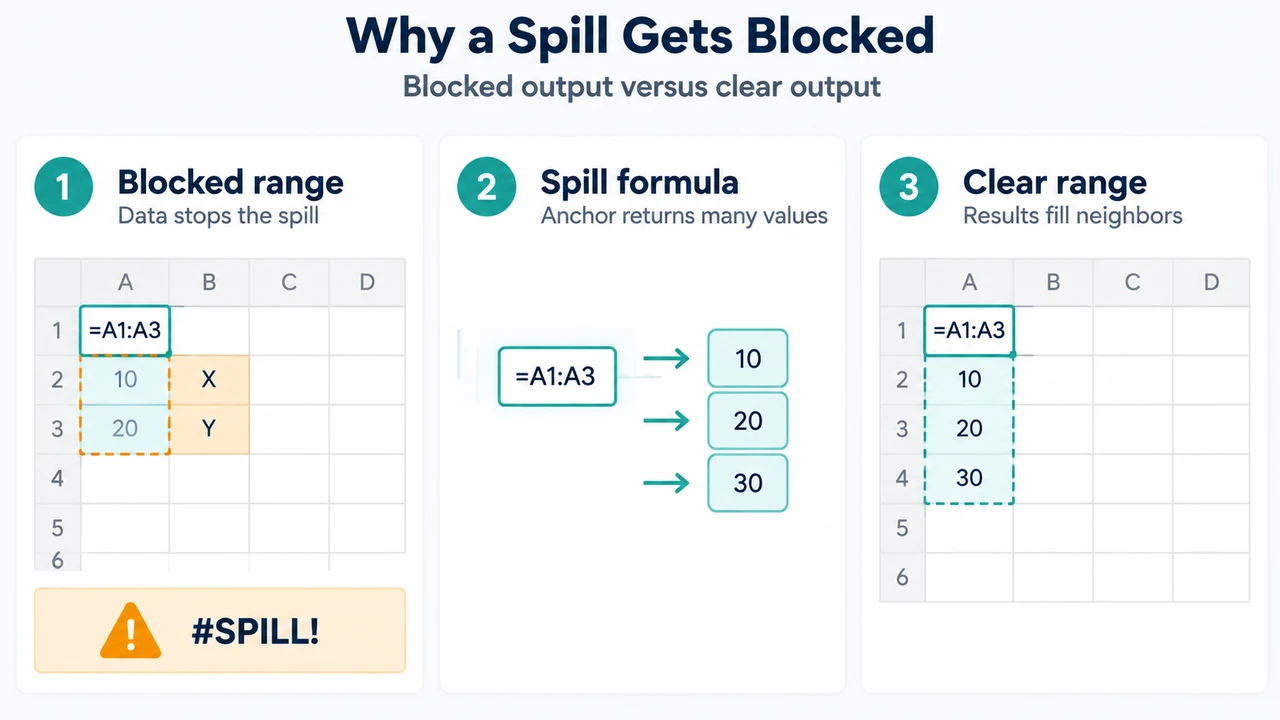
A dynamic-array formula can return a set of values. Excel places the results in neighboring cells, with the formula in the top-left cell. When you select a cell in a spill area, Excel highlights the range with a border. Only the top-left cell is editable.
If the formula returns #SPILL!, select its cell. The dashed border shows where Excel intends to put the results. Select the error-checking alert and choose Select Obstructing Cells to identify cells that prevent the output range from being used.
After checking that the contents are not needed elsewhere, delete or move the obstructing entry. Microsoft states that the array formula should spill once the obstruction is cleared. If the data matters, copy or move it to another suitable location rather than deleting it.
Check these documented causes
The intended range is not blank
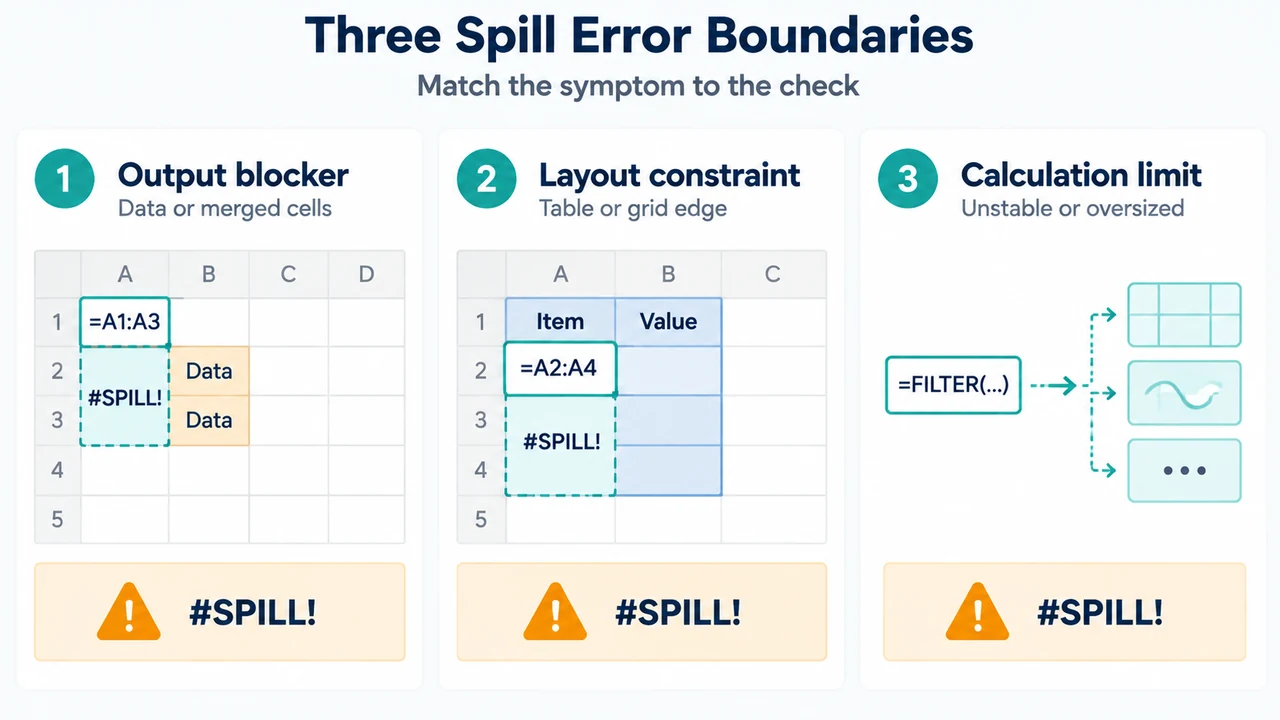
A spill range cannot overlap a range containing data. The blockage may be visible in the intended output area. Remove or relocate the blocking data only after checking what it contains.
The formula is inside an Excel Table
Spilled array formulas are not supported inside Excel Tables. Microsoft’s documented options are to move the formula outside the Table or convert the Table to a range. The source also notes that Tables can still be useful for holding independent rows and columns of data, with structured references used by a dynamic-array formula placed outside the Table.
Do not assume that moving every formula is appropriate. First identify whether the formula itself is inside the Table and whether the surrounding data depends on the Table structure.
The intended range includes merged cells
Spilled array formulas cannot spill into merged cells. Microsoft recommends unmerging the cells in question or moving the formula to a range that does not intersect merged cells. The error cell’s dashed border and Select Obstructing Cells option can help identify the relevant area.
The result would extend beyond the worksheet edge
A formula can request more results than the remaining worksheet grid can hold. Microsoft gives this example: in cell E2, =VLOOKUP(A:A,A:C,2,FALSE) can attempt to return 1,048,576 results and reach the bottom of the Excel grid.
The documented approaches are:
- Reference only the lookup values needed, such as
=VLOOKUP(A2:A7,A:C,2,FALSE). Microsoft notes that this dynamic-array form does not work with Excel Tables. - Reference the value on the same row and copy the formula down, such as
=VLOOKUP(A2,A:C,2,FALSE). Microsoft notes that this traditional form works in Tables but does not return a dynamic array. - Use the
@operator for implicit intersection and copy the formula down, such as=VLOOKUP(@A:A,A:C,2,FALSE). Microsoft notes that this form works in Tables but does not return a dynamic array.
These examples address the documented whole-column lookup case. They do not establish that the same change is suitable for every formula.
The array size cannot stabilize
Excel may return #SPILL! when it cannot determine a stable spilled-array size because the formula is volatile and changes size between calculation passes. Microsoft gives =SEQUENCE(RANDBETWEEN(1,1000)) as an example. The source associates this issue generally with RAND, RANDARRAY and RANDBETWEEN. It also states that OFFSET, INDIRECT and TODAY do not return different values on every calculation pass.
This is a different diagnosis from a cell obstruction. If the intended range is available but the array size keeps changing during recalculation, inspect whether the formula uses a documented volatile size source.
Excel runs out of memory
Microsoft also lists insufficient memory as a possible cause when the attempted spilled array is too large. Its documented suggestion is to reference a smaller array or range. The supplied documentation does not define a particular memory threshold.
The cause is unrecognized
Excel may show an unrecognized or fallback #SPILL! cause. Microsoft advises checking that the formula contains all required arguments for the scenario. The supplied documentation does not provide a universal repair for this case.
A safe diagnostic order
- Select the
#SPILL!cell and inspect the dashed intended range. - Use the error-checking alert and choose Select Obstructing Cells.
- Check whether the output range contains data or merged cells.
- Check whether the formula is inside an Excel Table.
- For whole-column lookup formulas, compare the formula with Microsoft’s documented narrower-range, same-row, or
@examples. - If no obstruction is present, check for an unstable array size, excessive requested range, or an unrecognized cause.
This order is a diagnostic aid based on the supplied Microsoft explanations. It is not a claim that every workbook follows the same cause sequence.
Important limits
Dynamic arrays have limited support between workbooks. Microsoft states that this scenario is supported only while both workbooks are open; if the source workbook is closed, linked dynamic-array formulas return #REF! when refreshed. That is a separate documented issue from the obstruction cases above.
The Microsoft pages identify supported product and device versions, but the supplied excerpts do not document feature parity for every function or interface on every listed platform. The instructions above therefore describe the documented behavior and examples without claiming that every menu label or formula feature is identical across all versions.
Research method and limitations: This article was prepared from the supplied public Microsoft support excerpts retrieved on 2026-09-19, plus a supplied competitor excerpt used only to compare coverage. It makes no hands-on, lab, benchmark or comprehensive-review claim. The competitor passage was truncated and was not used as technical authority.
Text version of the diagrams
- Why a Spill Gets Blocked: Blocked range — Data stops the spill; Spill formula — Anchor returns many values; Clear range — Results fill neighbors
- Three Spill Error Boundaries: Output blocker — Data or merged cells; Layout constraint — Table or grid edge; Calculation limit — Unstable or oversized