When troubleshooting issues that occur when starting or using Microsoft Word on Windows, Microsoft documents isolation options to determine the root cause. Before troubleshooting, ensure that Windows and your version of Office are up to date.
Important: Serious problems might occur if you modify the registry incorrectly. Follow registry steps carefully and back up the registry for restoration before making modifications.
Option 1: Insert Your Document into Another File
The final paragraph mark in a Word document contains information about the document. If a specific document is damaged, you may be able to retrieve its text by leaving this final paragraph mark behind:
- On the File menu, select New, and then select Blank Document.
- On the Insert tab, select Object in the Text group, and then select Text from File.
- Select the file that you want to open and insert, and then select Insert.
Option 2: Start Word by Using the /a Switch
The /a (“administrative installation”) switch is a troubleshooting tool used to determine where a problem exists in Word. The switch prevents add-ins and global templates from loading automatically, and it locks settings files to prevent them from being read or modified.
- Type
Runin the Search box (in Windows 10, Windows 8.1, or Windows 8) or in the Start Search box on the Start menu (in earlier Windows versions), and press Enter. - In the Run dialog box, type
winword /aand press Enter. - If the problem does not occur when you start Word by using the
/aswitch, proceed to subsequent troubleshooting options.
Option 3: Delete the Word Data Registry Subkey
Most frequently used options in Word are stored in the Word Data registry subkey. Deleting this subkey causes Word to rebuild it using default settings when restarted. This resets several options to defaults, including the “most recently used file” list on the File menu and customized settings in the Options dialog box.
- Exit all Office programs.
- Type
regeditin the Search box (in Windows 10, Windows 8.1, or Windows 8) or in the Start Search box on the Start menu (in earlier versions of Windows), and press Enter. - Locate the appropriate registry subkey for your version of Word:
- Word 2016 or later:
HKEY_CURRENT_USER\Software\Microsoft\Office\16.0\Word\Data - Word 2013:
HKEY_CURRENT_USER\Software\Microsoft\Office\15.0\Word\Data - Word 2010:
HKEY_CURRENT_USER\Software\Microsoft\Office\14.0\Word\Data - Word 2007:
HKEY_CURRENT_USER\Software\Microsoft\Office\12.0\Word\Data - Word 2003:
HKEY_CURRENT_USER\Software\Microsoft\Office\11.0\Word\Data
- Word 2016 or later:
- Select Data, and then select Export on the File menu.
- Name the file
Wddata.reg, and then save the file to the desktop. - On the Edit menu, select Delete, and then select Yes.
- Exit Registry Editor and start Word.
Research Method and Limitations
This troubleshooting guide was compiled strictly from the supplied public excerpts of Microsoft support documentation (“Issues that occur when you start or use Word”). No independent testing, laboratory benchmarks, or hands-on repair sessions were conducted. Because the provided source text is truncated, procedures that lack complete step-by-step instructions in the visible excerpts—such as the initial command to rename the active global template file (Normal.dot or Normal.dotm) before testing, the complete export and deletion steps for the Word Options registry key, detailed Startup folder file-renaming procedures, and COM add-in isolation—have been omitted rather than presenting incomplete troubleshooting workflows. Additionally, no accessible competing coverage was available in the evidence to evaluate comparative gaps.
Text version of the diagrams
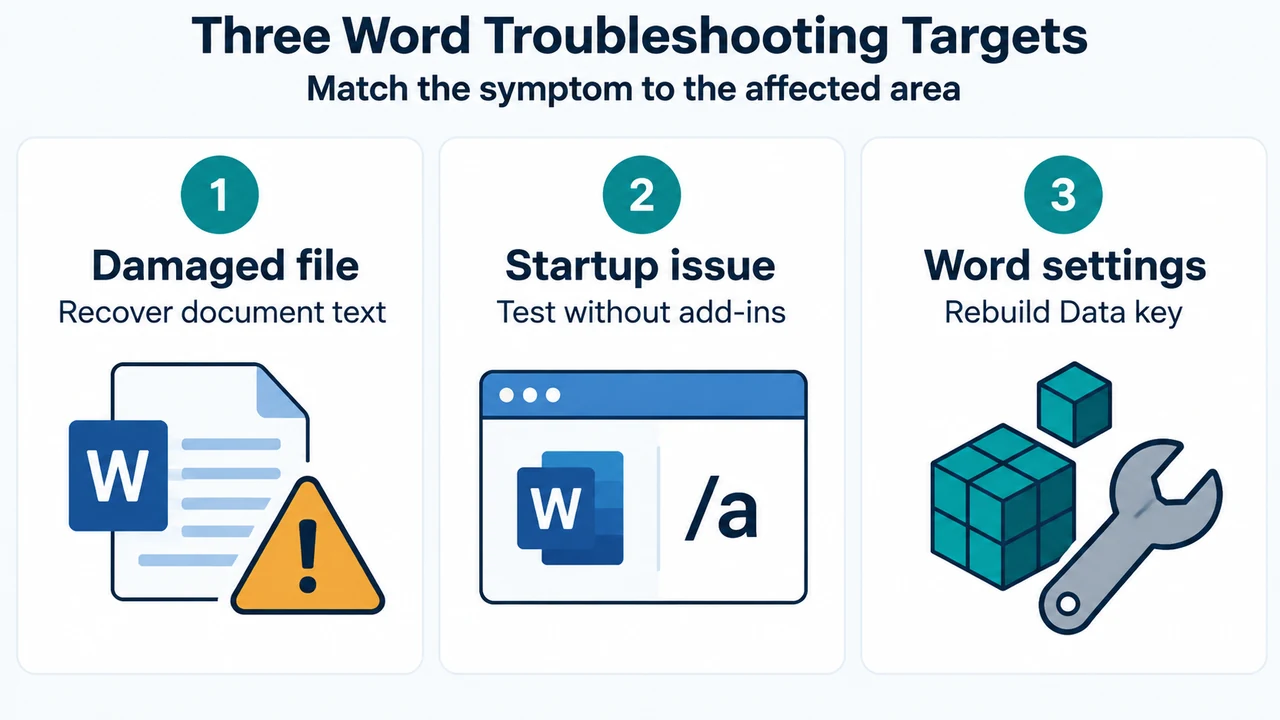
- Three Word Troubleshooting Targets: Damaged file — Recover document text; Startup issue — Test without add-ins; Word settings — Rebuild Data key
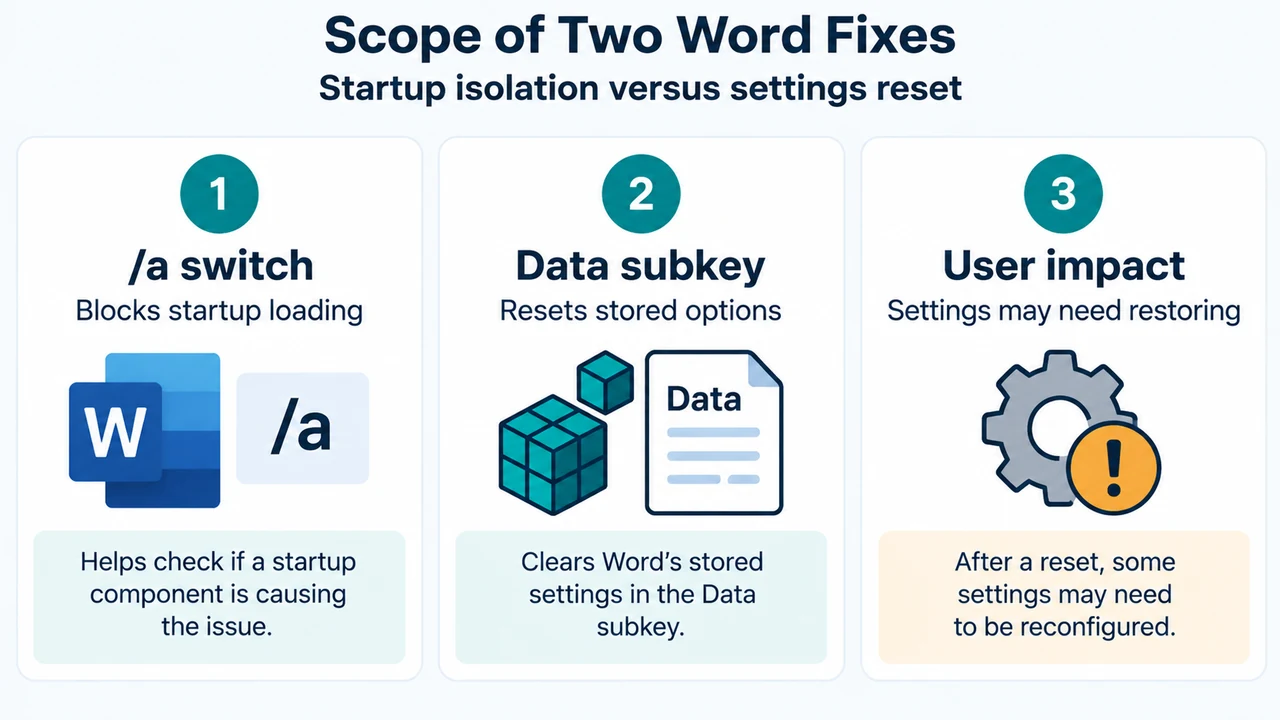
- Scope of Two Word Fixes: /a switch — Blocks startup loading; Data subkey — Resets stored options; User impact — Settings may need restoring