When Microsoft Word closes unexpectedly or you exit without saving, your ability to retrieve lost work depends on whether the file was ever saved and whether Word’s AutoRecover feature was active. Microsoft Word includes documented backstage recovery menus and a Document Recovery task pane to handle these situations. However, recovery is not guaranteed, and specific user actions—such as clicking “Don’t Save”—explicitly delete temporary AutoRecover files.
Immediate Document Recovery After an Unexpected Shutdown
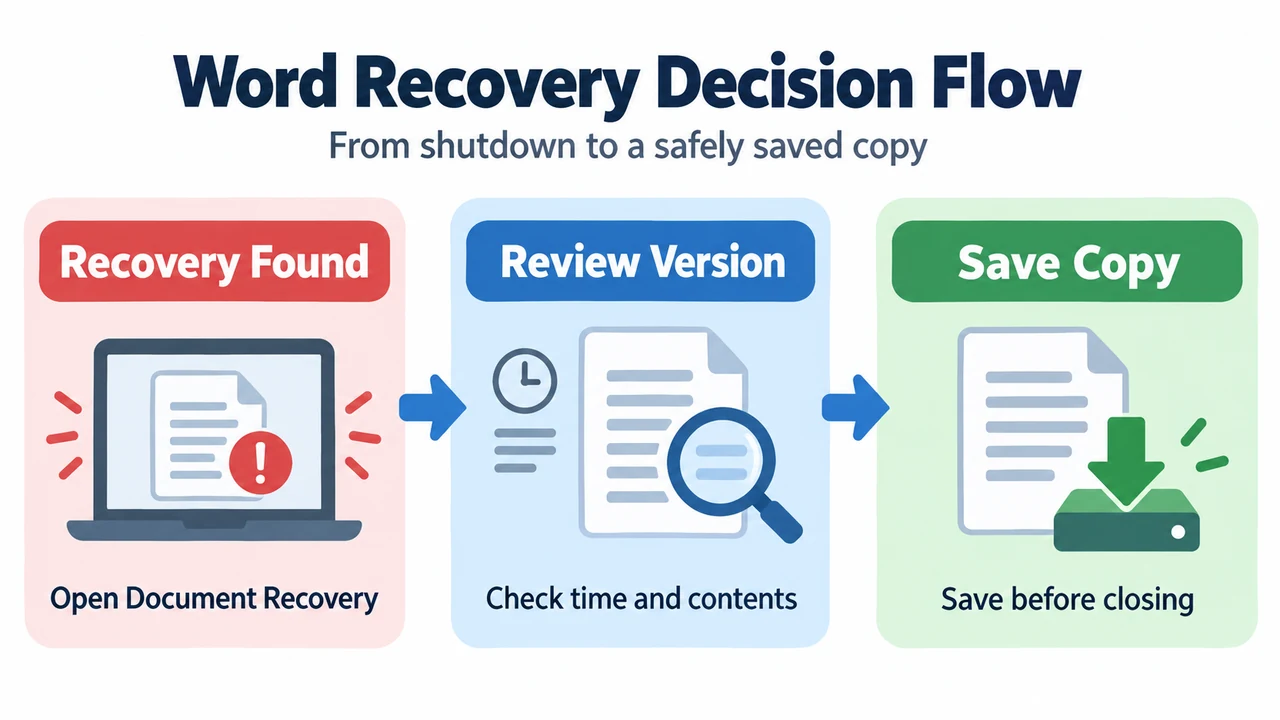
When Word closes unexpectedly due to a power failure or crash before changes are saved, the Document Recovery pane is designed to open automatically the next time you open the application to help you get your file back.
When multiple recovery files appear in the Available Files list, use these documented steps:
- Check timestamps: The date and creation time appear beneath each document’s name. If several versions exist, open the entry showing the most recent time to review the latest changes.
- Open and inspect: Select any file in the list to open and review the document.
- Save immediately: If you want to keep a recovered document, immediately save it before closing or editing it.
- Managing remaining files: If you select Close before reviewing all recovered files, Word prompts you with options:
- Yes, I want to view these files later (safest option): Choose this if you are not sure whether you need data in the recovered versions. The next time you open the application, you will have the option to save or remove those AutoRecover files.
- No, remove the files. I have saved the files I need: Choose this if you are sure you do not need data in the recovered versions.
- Deleting unwanted entries manually: Select the arrow next to the file name in the recovery pane, select Delete, and confirm by selecting Yes.
Recovering a Document That Was Never Saved
If you drafted a new document that was never manually saved and Word closed without an automatic recovery prompt, check the backstage menu:
- Open Microsoft Word.
- Go to File > Info.
- Select Manage Document, then choose Recover Unsaved Documents.
- Select the file from the dialog and select Open.
- In the bar at the top of the file, select Save As to save the file.
Recovering an Unsaved Version of an Existing, Saved File
If you were editing a previously saved file, made additional modifications, and closed without saving:
- Open the original file you were working on in Word.
- Select File > Info.
- Under Manage Documents, select the file labeled (when I closed without saving).
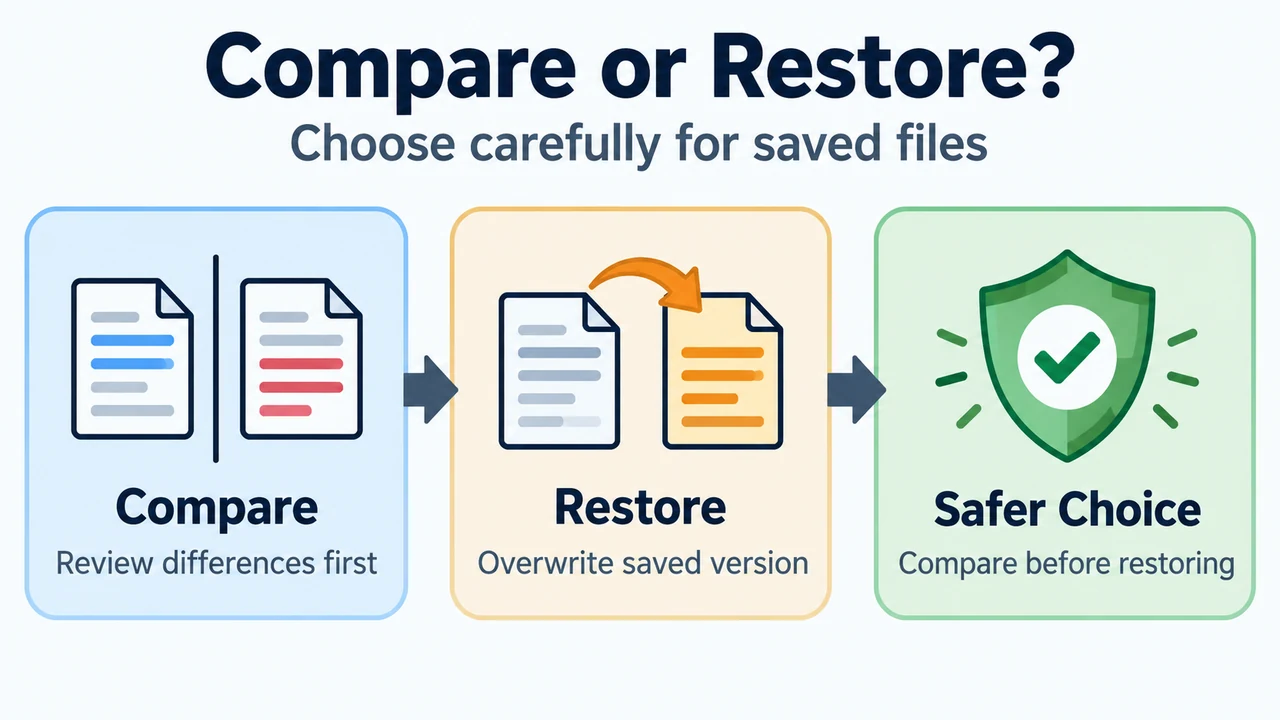
- In the bar at the top of the file, choose your action carefully:
- Compare: Select Compare instead of Restore to compare versions before making permanent changes.
- Restore: Selecting Restore will overwrite any previously saved versions.
Manual AutoRecover File Locations on macOS
On macOS, if you need to manually find AutoRecovered files, the AutoRecovery folder is hidden in Finder. Microsoft documents accessing it using Go to Folder:
- Switch to Finder.
- Select Go > Go to Folder (or press Shift + Command + G).
- Enter the path for latest versions:
/Users/<username>/Library/Containers/com.Microsoft/Data/Library/Preferences/AutoRecovery(replace<username>with your actual username).
Recovering Text from a Damaged File in Word for Mac
In Word for Mac, if an existing file is damaged, Word provides a documented text extraction procedure:
- Go to Word > Preferences.
- Under Authoring and Proofing Tools, select General.
- Ensure Confirm file format conversion at Open is selected, then close the General dialog box.
- Go to File > Open.
- On the Open menu, select Recover Text.
- Open the document.
Known Limits and When Recovery Fails
AutoRecover does not guarantee file restoration under all circumstances. Documented limitations include:
- Clicking “Don’t Save” deletes AutoRecover data: If you close a file and select Don’t Save, the AutoRecover file is deleted because Office assumes everything is acceptable and the file is not needed.
- Feature dependency: Version saving relies on the AutoRecover setting having been turned on while working.
- Subscriber recommendation: Microsoft notes that for Microsoft 365 subscribers, the safest way to work is to store files on OneDrive or SharePoint and use AutoSave.
Research Methodology and Limitations
This technical guide was prepared solely from the supplied public Microsoft Support documentation excerpts covering Word for Microsoft 365, Word 2024, Word 2021, Word 2019, and Word 2016. No laboratory tests, benchmarks, or hands-on operating system experiments were conducted. Competing coverage was unavailable for review.
Text version of the diagrams
- Word Recovery Decision Flow: Recovery Found — Open Document Recovery; Review Version — Check time and contents; Save Copy — Save before closing
- Compare or Restore?: Compare — Review differences first; Restore — Overwrite saved version; Safer Choice — Compare before restoring